Interactive whiteboard vs projector: which is better for classrooms and meeting rooms
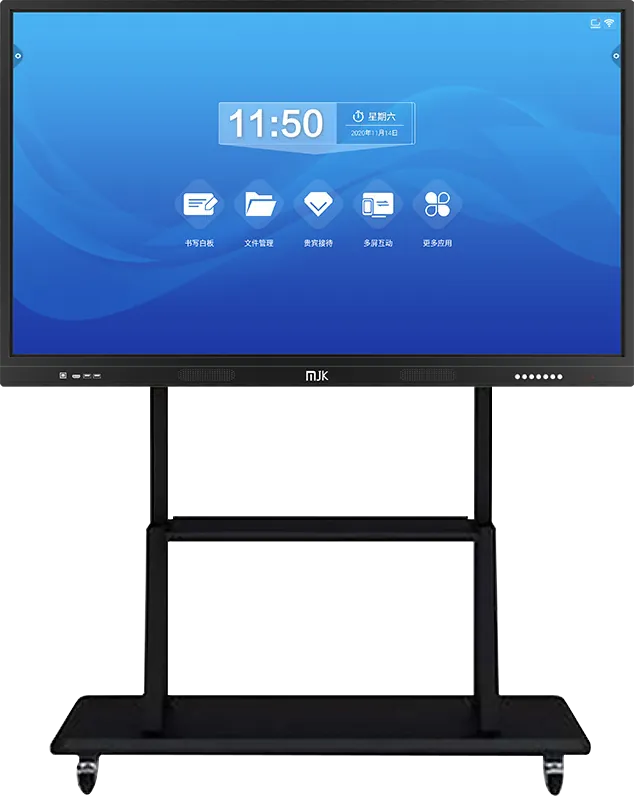
Short answer: Schools and offices replacing a projector usually compare it with an interactive flat panel, often called an interactive whiteboard or smart board. The panel is a large touch LCD with whiteboard, casting and meeting software built in; the projector throws an image onto a screen or a dry-erase board. This comparison covers image quality, writing, room size, upkeep and total cost, using the stated specifications of our panels and marking general rules of thumb as such.
- An interactive flat panel (smart board) is a large touch LCD with built-in whiteboard software; a projector throws an image onto a screen or board.
- Panels win on brightness in daylight, no shadows, touch writing and low upkeep; projectors win on very large images at a lower first price.
- Size the screen from the farthest seat: a common rule of thumb puts the screen height at no less than one sixth of that distance.
- Our panels run 55″ to 100″ (classroom model 55″–86″) with infrared multi-touch, anti-glare tempered glass and Android or Android + Windows.
1. What each option is
The names overlap, so it helps to be precise:
- Interactive flat panel (IFP): a large LCD with a touch layer and a built-in computer. Buyers also call it an interactive whiteboard, smart board, smart blackboard or interactive display. You write on the glass with a finger or stylus, and it runs whiteboard, casting and video-meeting software on its own.
- Projector: a lamp or laser projector that throws the image from a laptop onto a screen or a white wall. It has no touch unless you add an interactive board or a sensor.
- Interactive whiteboard with projector: the older classroom setup, a touch-sensitive board with a short-throw projector above it. It combines the touch of a panel with the image of a projector, and the upkeep of both.
Our interactive flat panels come in three versions: the meeting and teaching panel (55″–100″), the wall-mounted panel (55″–100″) and the smart teaching panel (55″–86″, Android + Windows).
2. Side-by-side comparison
| Factor | Interactive flat panel | Projector |
|---|---|---|
| Image in a bright room | Backlit LCD stays readable with lights on and blinds open | Washes out in daylight unless the projector is very bright or the room is darkened |
| Shadows and glare | No shadow; our panels use anti-glare tempered glass | The presenter's body casts a shadow; standing in the beam is uncomfortable |
| Writing | Write, erase and annotate directly on screen with finger or stylus; save and share the board | Needs a separate whiteboard or an interactive add-on |
| Image size | Fixed: 55″ to 100″ in our range | Flexible, and very large images are cheaper to project than to build in LCD |
| Sharpness | Full HD panels, 178° viewing; detail stays sharp up close | Depends on the projector and focus; softens as it ages |
| Built-in computer | Android, or Android + Windows; works without a laptop | Needs a laptop or media player |
| Casting and meetings | Wired and wireless casting and remote meetings built in; camera and microphone array as options | Casting through extra hardware; meetings through the laptop |
| Upkeep | No lamp or filter; clean the glass | Lamp or light-source ageing, filters, focus and alignment |
| First price | Higher for the same diagonal | Lower, especially for large images |
The table compares typical setups, not specific projector models; a high-brightness laser projector narrows the daylight gap, at a higher price.
3. Writing and teaching
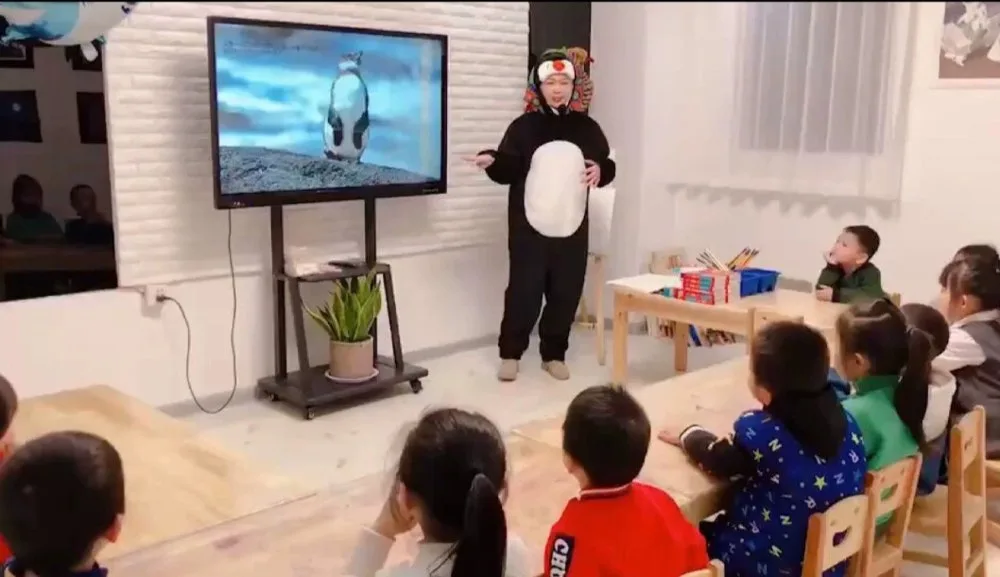
Writing is the main reason schools change. On a panel the teacher writes directly on the screen over a slide, a video or a web page, then saves the board for students. Our smart teaching panel uses electronic whiteboard software with finger or stylus writing, plays video and documents, and browses the web on one screen; the meeting version adds writing, erasing and document annotation, with wired and wireless casting.
With a projector, writing happens on a separate whiteboard next to the image, or on the image itself if the board is interactive. Notes are not saved unless someone photographs the board. For lessons that mix slides and handwriting, the panel removes the back-and-forth between screen and board.
4. How big a screen the room needs
The rule below is a common AV planning rule of thumb, not an MJK specification: for general viewing, the screen's picture height should be at least one sixth of the distance to the farthest seat. For reading fine detail, designers use one quarter.
| Panel size (16:9) | Picture height, approx. | Farthest seat, general viewing (÷ 6) | Farthest seat, fine detail (÷ 4) |
|---|---|---|---|
| 65″ | 0.81 m | about 4.9 m | about 3.2 m |
| 75″ | 0.93 m | about 5.6 m | about 3.7 m |
| 86″ | 1.07 m | about 6.4 m | about 4.3 m |
| 100″ | 1.25 m | about 7.5 m | about 5.0 m |
So a meeting room for 8–12 people usually fits a 65″–75″ panel, and a classroom where the back row sits 6–7 m away needs 86″ or larger. For deeper rooms, lecture halls or very wide images, a projector or a second screen is often the better answer; for rooms that need one seamless very large image, see LCD video walls and fine-pitch LED.
5. Cost over the life of the room
A projector usually costs less to buy, and a panel usually costs less to keep. Without quoting prices, these are the items to put in your own comparison over five or more years:
- Purchase: panel vs projector, screen and, for teaching, a whiteboard or interactive board.
- Light source: as general knowledge, lamp projectors need lamp replacements during their life; laser projectors last longer but cost more at the start. A panel has no lamp.
- Extra hardware: a projector needs a laptop or player and often a casting box; our panels have the computer, whiteboard and casting built in.
- Installation: a ceiling projector needs cabling and alignment; a panel needs a wall bracket able to hold its weight, or a mobile stand.
- Time: lessons and meetings that start late because the projector will not focus or the laptop will not connect.
The interactive flat panel buying guide covers specifications and options in detail.
6. When a projector is still the right choice
- Very large images in auditoriums and halls, where an LCD of that size is not practical.
- Temporary or moving setups, such as events and rented rooms.
- Rooms that can be darkened and where nobody writes on the image.
- Very tight budgets where the first price matters more than running costs.
Many schools mix both: interactive panels in classrooms and meeting rooms, projectors in the hall.
7. If you choose a panel: what to specify
| Item | What to specify | What our sources state |
|---|---|---|
| Size | From the farthest seat (table above) | 55″–100″; teaching model 55″–86″ |
| System | Android only, or Android + Windows for Windows teaching software | Single or dual system; teaching model Android + Windows |
| Touch and writing | Finger and stylus; number of simultaneous writers | Infrared multi-touch |
| Glass | Anti-glare for bright rooms | Anti-glare, high-transparency, explosion-proof tempered glass |
| Meetings | Built-in camera and microphone array, or external | Camera and mic array as options; wired and wireless casting |
| Mounting | Wall bracket or mobile stand | Wall-mounted model; teaching model on wall mount or mobile stand |
| Ports | Front access for USB and laptops | Front and side I/O on the wall model |
| Branding | Boot logo, launcher, bezel logo | Available as OEM options |
Send your list through the contact page. Panels for schools are covered on the education page and for meeting rooms on the office page. For private-label orders, read OEM vs ODM.
8. Common mistakes
- Choosing the screen size from the budget instead of the distance to the back row.
- Buying an Android-only panel when the school's teaching software runs only on Windows.
- Mounting the panel so high that shorter teachers and students cannot write on the top half.
- Replacing a projector with a panel without training, so the panel is used only as a television.
- Comparing the purchase price only, without lamps, casting hardware and lost lesson time.
- Choosing a projector for a bright classroom that cannot be darkened.
Frequently asked questions
Is an interactive whiteboard better than a projector?
For classrooms and meeting rooms up to about 7 m deep, usually yes: it stays readable in daylight, has no shadow, lets you write on screen and needs no lamp. A projector is still the better buy for very large images in halls and for temporary setups.
What size interactive panel do I need for a classroom?
As a rule of thumb, the picture height should be at least one sixth of the distance to the back row. A back row 6–7 m away needs about 86″; a 4–5 m meeting room fits 65″.
Does an interactive flat panel need a computer?
No. Our panels have a built-in Android system, and the teaching model runs Android + Windows; whiteboard, casting and meeting software work without a laptop, which can still be connected through the front and side ports.
What sizes do your interactive panels come in?
55″ to 100″ for the meeting and wall-mounted panels, and 55″ to 86″ for the smart teaching panel, all with infrared multi-touch and anti-glare tempered glass.