Self-service payment kiosks: a buying guide for bill payment, top-up and unattended service
Short answer: A self-service payment kiosk lets customers pay bills, top up cards and check balances without a cashier, and posts every payment straight to your billing system. Buy it in this order: list the transactions, choose the payment methods, pick the modules and the cabinet, settle the software link and the security rules, then plan the sites. This guide uses the stated specifications of our payment and self-service terminals and marks general practice as such.
- A payment kiosk is a touch terminal plus payment modules, a receipt printer and back-end software that posts each payment to your billing or account system.
- Choose the payment methods first: QR wallet, card reader/writer, bank card or contactless; each one decides a module, a cabinet cut-out and a software link.
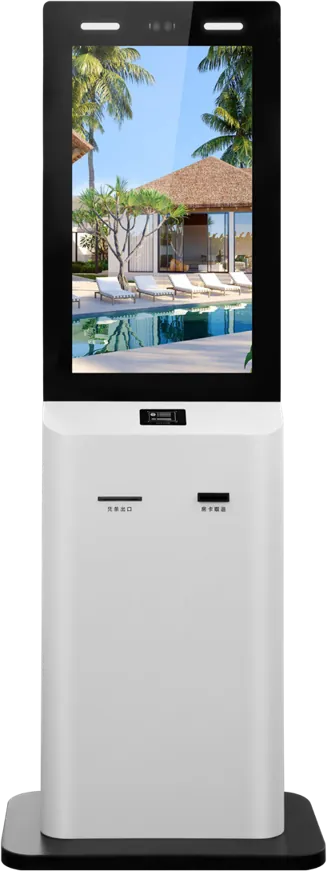
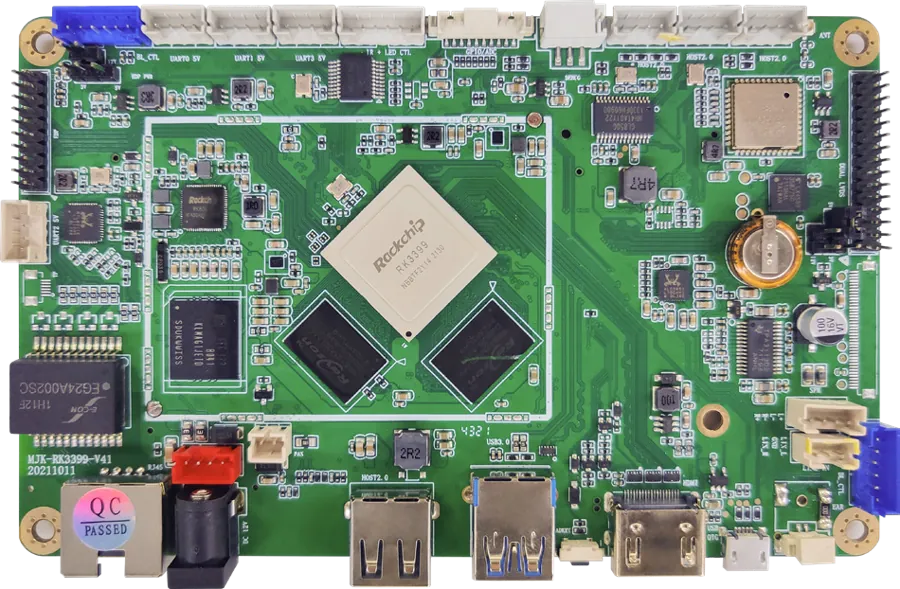
- Our 32″ payment kiosk runs Android 8.0 on an RK3399 board with QR payment, card reader/writer, thermal printer, 2D barcode engine, 5 MP camera and a PIR wake sensor.
- Card acceptance certification sits with the payment terminal and your acquirer, so confirm who supplies and certifies the card module before the cabinet is built.
1. What a payment kiosk is
A self-service payment kiosk is an unattended terminal where a customer identifies an account, sees what is due, pays, and receives a receipt. It replaces a cashier for routine payments and keeps working outside opening hours.
Every payment kiosk has five parts:
- Terminal: a touch screen, a mainboard and a cabinet built for a public place.
- Identification: how the customer tells the kiosk which account to pay: a card, a barcode on the bill, a phone number or an ID.
- Payment modules: QR wallet payment, a card reader/writer, a bank-card terminal or contactless reader.
- Receipt: a thermal printer for proof of payment, and optionally an SMS or e-receipt.
- Back-end link: software that checks the amount due, records the payment and updates the account in real time.
Our self-service kiosk range covers the terminal, the modules and the cabinet; the billing system and the payment acquirer are yours, and the link between them is agreed per project.
2. Typical transactions
| Transaction | How the customer identifies | Modules it needs |
|---|---|---|
| Utility or telecom bill payment | Scan the barcode on the bill, or enter the account number | 2D barcode engine, QR payment, receipt printer |
| Prepaid card top-up (fuel, gas, campus, transport) | Insert or tap the card | Card reader/writer for that card type, QR payment, printer |
| Balance and history inquiry | Card, account number or face | Card reader or camera; no payment module needed |
| Fees and fines at an agency | ID card or case number | ID reader, QR or bank-card payment, printer |
| Parking and unattended sites | License plate or QR ticket | Plate recognition camera, QR scanner, help button |
The fuel-card case is where our 32″ kiosk started: it was built for fuel-card and gas-card top-up at filling stations, where the card reader/writer loads value onto the customer's card after a QR payment.
3. Catalog models for payment and unattended service
| Model | What the sources state | Best fit |
|---|---|---|
| 32″ payment & top-up kiosk | 32″ 1920 × 1080, 10-point capacitive touch; RK3399, 4 GB, 64 GB SSD, Android 8.0; thermal printer, 2D barcode engine, card reader/writer, 5 MP face camera, PIR sensor; Ethernet, Wi-Fi, 4G; 1810 × 550 mm, 60 kg, 220 W | Bill payment and card top-up in halls, stations and service points |
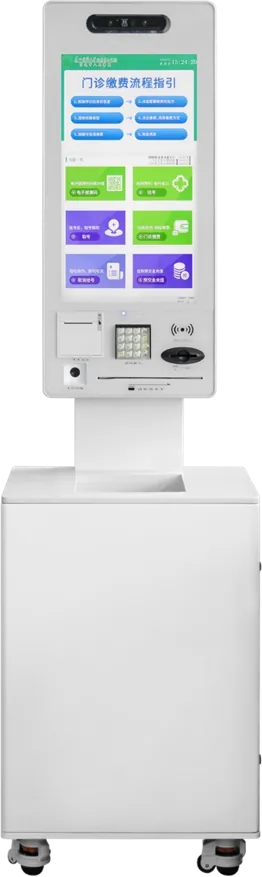
| Bank & government terminal | RK3288 or RK3399; bank-card slot, receipt outlet, QR scanner, biometric and ID modules; dual-screen; OTA updates, scheduled power on/off, remote monitoring | Card-based transactions and certificates in banks and agencies |
| 21.5″ dual-screen terminal | 10-point capacitive touch, ID card reader, 2 MP face camera, card swipe and printing, Android + Windows dual system | Fee payment with ID check; the second screen shows guidance or notices |
| Unattended outdoor AI terminal | Face recognition, license-plate detection, outdoor HD touch screen, QR scanner, one-key SOS button, sand-blasted rust-proof body, Android | Car parks and unattended sites; payment or ticket printer as an add-on |
4. Payment methods and what each one adds
- QR wallet payment: the kiosk shows a QR code or scans the customer's code. It needs only a scanner or the screen, so it is the simplest and the cheapest to add. Our payment kiosk has QR payment and a 2D barcode engine built in.
- Card reader/writer: reads and loads value onto prepaid cards such as fuel, gas, campus or transport cards. The reader must match your card type and its encryption keys; tell us the card standard and who supplies the keys.
- Bank cards: the bank-and-government terminal has a bank-card slot. As general practice, card payments run through a payment terminal certified for your market and connected to your acquirer; the kiosk houses it, powers it and passes the amount to it.
- Contactless (NFC): an NFC reader is available as an option on our self-ordering kiosk; on a payment kiosk it is a project item.
- Cash: note acceptors and coin modules are not part of the stated configurations of these models. If your customers still pay cash, ask for it at the start, because cash changes the cabinet, the security and the service routine.
Each method you add is a module, a driver, a cut-out in the cabinet and a link in the software. Start with the methods most of your customers already use; the kiosk peripherals article explains each module.
5. Software and the link to your billing system
A payment kiosk is only as good as its link to the account system. Decide early:
- Who writes the kiosk application: your team or integrator, or a project agreed with us. Our payment kiosk runs Android 8.0 on RK3399; Android or Windows builds exist across the range, so existing software can usually be kept. The Android vs Windows guide covers the choice.
- Real-time posting: the kiosk should check the amount due and post the payment through your billing system's interface, not by a nightly file, so the customer's account updates at once.
- What happens when the network drops: decide whether the kiosk stops taking payments, or queues them; most operators stop payments and keep inquiries.
- Remote management: the bank-and-government terminal lists OTA updates, scheduled power on/off and remote monitoring. Ask for paper-low, module-fault and offline alerts so a field team knows before customers do.
- Reconciliation: every payment needs a transaction number that matches across the kiosk, the payment provider and the billing system, so daily totals can be checked.
6. Security for an unattended terminal
A payment kiosk stands alone in a public place, so security is designed into the cabinet and the software:
- Cabinet: locked service doors, no exposed screws or cables, and modules mounted inside the steel body. The enclosure guide explains sheet thickness, locks and finishes.
- Locked-down system: the kiosk app runs in kiosk mode; the user cannot reach the operating system, settings or other apps.
- Camera and wake sensor: our payment kiosk has a 5 MP face camera and a PIR sensor that wakes the screen when someone approaches. Use the camera according to your local privacy rules.
- Help channel: the outdoor AI terminal has a one-key SOS call button; for indoor kiosks, a help phone number on screen and on the cabinet is the minimum.
- Payment data: as general practice, card data should stay inside the certified payment terminal and never pass through the kiosk application.
7. Where to place payment kiosks
- Service halls: next to the counters so staff can help first-time users; see banking and government. A queue system can send routine payments to the kiosk instead of a counter.
- Filling stations and utility points: under cover, with the screen turned away from direct sun. Indoor kiosks are not built for rain.
- Car parks and unattended sites: use an outdoor-rated terminal such as the AI terminal, with a help button and good lighting.
- Hotels, campuses and transport: top-up and fee payment where staff are not always present; see hotels and transportation.
Plan power, a wired network where possible (4G as backup), and space in front for a queue and a wheelchair user.
8. Specification checklist for your RFQ
| Item | What to specify |
|---|---|
| Transactions | Bill payment, top-up, inquiry, fees; expected payments per day per kiosk |
| Identification | Bill barcode, card type, ID document, plate number, account number |
| Payment methods | QR wallets, prepaid card, bank card, contactless, cash; who supplies and certifies the payment terminal |
| Receipt | Printer width, receipt layout, e-receipt |
| Model and screen | 32″ payment kiosk, dual-screen terminal, bank & government terminal or outdoor terminal |
| Software | Your app (OS and drivers) or a project app; billing-system interface documents |
| Management | Remote monitoring, alerts, OTA updates, on/off schedule |
| Site | Indoor, covered outdoor or open outdoor; network; power and plug type |
| Branding | Cabinet color, signage header, logo, boot screen |
| Certification | The marks your market requires for the kiosk and for the payment module |
Send it through the contact page. The certification guide lists the marks by market, the OEM kiosk cost breakdown shows what drives the price, and the sourcing guide covers samples and inspection.
9. Common mistakes
- Choosing the kiosk before the payment provider, then finding the card terminal does not fit the cabinet.
- Posting payments to the billing system in a nightly batch, so customers see unpaid bills the next morning.
- Adding every payment method on day one, each with its own fault point.
- No paper-low or offline alerts, so a kiosk stays out of service for days.
- Putting an indoor kiosk in a place that gets rain or direct sun.
- No help channel on an unattended kiosk.
- No transaction number shared across kiosk, payment provider and billing system, so reconciliation becomes manual.
For the mainboard inside these kiosks, see the custom Android mainboard guide.
References and standards
Official texts behind the rules mentioned in this guide:
- PCI Security Standards Council — security standards for card payments
- Directive 2014/53/EU (RED) — EU rules for devices with Wi-Fi, Bluetooth, 4G or NFC
- U.S. Access Board — ADA operable parts — US accessibility rules for reach ranges and operable parts
Frequently asked questions
What is a self-service payment kiosk?
An unattended terminal where customers identify an account, pay by QR, card or other methods, and get a receipt, while the payment is posted to the billing system. Ours is a 32″ Android unit with QR payment, card reader/writer and thermal printer.
Can the kiosk accept bank cards?
Yes, through a card payment terminal certified for your market and connected to your acquirer. Our bank-and-government terminal has a bank-card slot; we confirm the terminal model and cabinet cut-out before production.
Does your payment kiosk take cash?
Cash modules are not part of the stated configurations. If you need note or coin acceptance, raise it at the start: it changes the cabinet, security and service routine and is handled as a project.
Can the kiosk connect to our billing system?
Yes. The kiosk application checks the amount due and posts each payment through your system's interface in real time. Send the interface documents with your inquiry and the integration is agreed per project.