Visitor management kiosks: a buying guide to self check-in for offices, factories and campuses
Short answer: A visitor management kiosk lets guests sign themselves in at reception: they scan an invitation QR code or an ID card, have a photo taken, and receive a pass, while the host is notified and the gate opens. Plan it in this order: define the visitor flow, choose the terminal for reception and for the gates, settle the software and the link to access control, then set the privacy rules for visitor data. This guide uses the stated specifications of our face terminals, touch kiosks and self-service terminals and marks general practice as such.
- A visitor kiosk replaces the paper visitor book: invitation or registration, identity check, photo, pass or QR, host notification, gate access and check-out.
- Small receptions can use a desktop face terminal with QR and ID options; busy lobbies need a full kiosk with an ID reader, camera and printer, plus face terminals or QR readers at the gates.
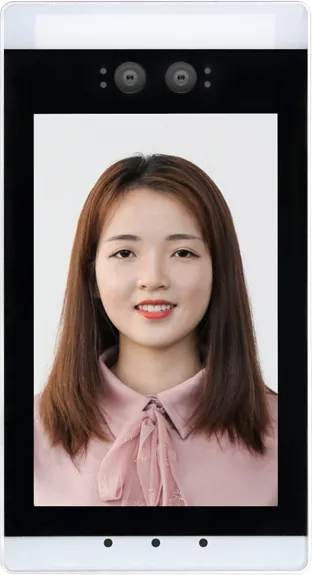
- Our 8″ face terminal recognises in 0.34 s with a stated FAR below 0.01% and an 11,000-face library, with binocular infrared liveness detection.
- Visitor photos and ID data are personal data: keep only what you need, delete it on schedule and follow local rules such as GDPR.
1. What a visitor management kiosk does
A visitor management kiosk is a self-service terminal at reception that registers visitors, checks who they are and gives them access for the visit. It replaces the paper visitor book and the queue at the front desk, and it leaves a digital record of who was in the building and when.
Most systems follow the same flow:
- Invitation: the host registers the visit in advance and the visitor receives a QR code.
- Arrival: the visitor scans the QR code, or registers on the spot with an ID card or a short form.
- Identity check: the kiosk reads the ID card, takes a photo and can compare the face with the ID photo.
- Pass: a printed badge, a QR code on the phone, or a face record valid for the visit.
- Host notification: the host is told the visitor has arrived.
- Access and check-out: face terminals or QR readers at the gates open for the visit only, and the visit closes at check-out or at a set time.
2. Which terminal for which reception
| Terminal | What the sources state | Best fit |
|---|---|---|
| Desktop face terminal | Desktop base, 2 MP binocular camera with infrared liveness, voice prompts; QR, ID card and temperature options; connects to gates, access, visitor and ticketing systems | Staffed reception and security desks; office reception visitor check-in |
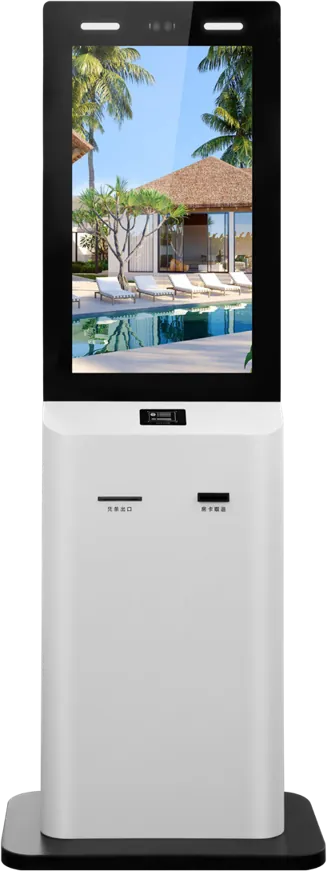
| 21.5″ dual-screen terminal | 10-point capacitive touch, ID card reader, 2 MP face camera, card swipe and printing, Android + Windows | Unstaffed lobbies where visitors register themselves and need a printed pass |
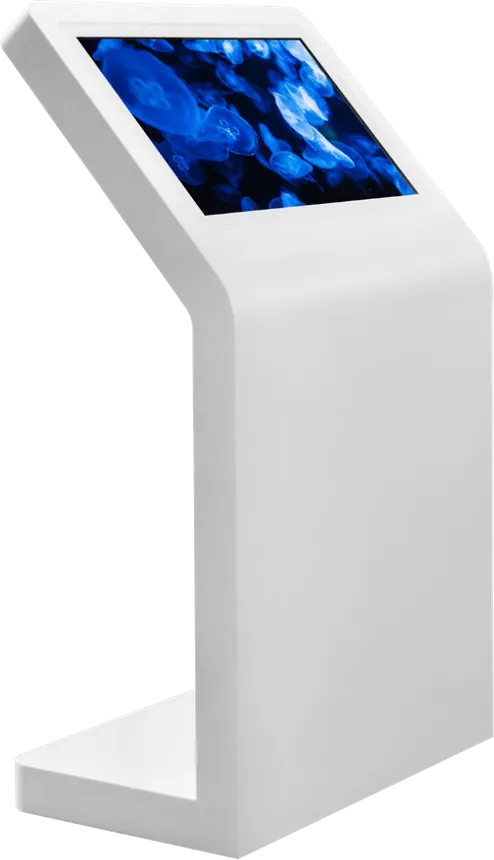
| Upright touch kiosk | 10-point touch, Android or Windows, Wi-Fi, Ethernet, 4G; small footprint; listed for office-building lobbies | Lobby kiosk running your visitor software; peripherals as options |
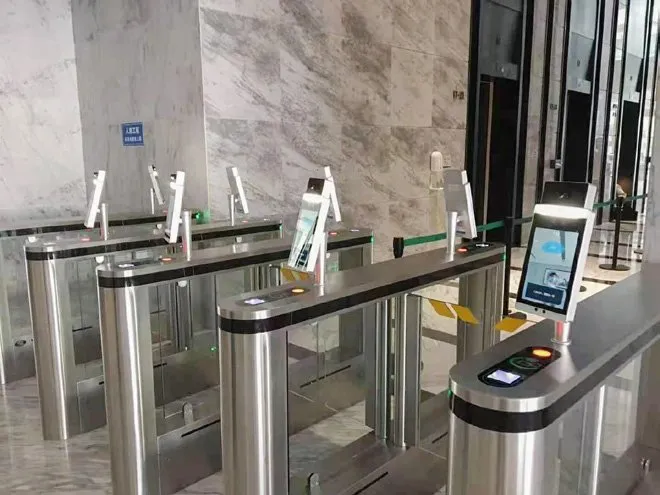
| 8″ face recognition terminal | RK3288, Android 7.1 (Linux version available); 0.34 s, FAR < 0.01%, 11,000 faces; IC/ID, QR or fingerprint modules; pole, wall or turnstile mount | Gates and turnstiles that admit staff and registered visitors |
| Slim access control panel | Slim portrait panel for wall, door frame or turnstile; card and fingerprint options; optional ID comparison; management platform | Office doors, meeting-room floors and dormitory entrances |
The face recognition terminal guide explains liveness detection, mounting and the attendance features of these terminals in more depth.
3. Check-in methods
- Invitation QR code: the fastest for pre-booked visitors; it needs a QR scanner on the kiosk and at the gate.
- ID card: an ID card reader fills in the visitor's name and can compare the face with the ID photo; our dual-screen terminal has an ID reader and the slim panel offers ID comparison as an option.
- Face: a photo taken at check-in becomes a temporary face record, so the visitor walks through face terminals at the gates for the length of the visit.
- Form on screen: name, company, host and purpose, for walk-in visitors without an invitation.
Most sites combine two: QR for invited guests and ID for walk-ins. Add a printer only if your site needs a visible badge.
4. Linking the kiosk to gates and access control
The value of a visitor kiosk comes from what happens after check-in. The visit should give the visitor access only to the right doors and only for the right time. Our desktop terminal is listed as connecting to gates, access, visitor and ticketing systems, and the 8″ face terminal mounts on poles, walls or turnstiles. Agree with your access-control supplier:
- How a visitor record created at the kiosk becomes a temporary permission at the gate.
- Which doors, floors or lifts the visitor may use.
- When the permission expires, and how check-out works.
- What happens offline: our attendance terminals list offline operation; ask how visitor permissions behave without a network.
For whole buildings and parks, see the offices and industrial parks page, which shows how visitor kiosks, face gates, lobby signage and meeting-room panels fit together.
5. Visitor software and host notification
The kiosk runs the visitor application; the application decides what visitors see, how hosts are told and where records are stored. Options:
- Your existing visitor or access platform, running on the kiosk; our terminals come in Android, Windows and, for the face terminal, Linux versions. The Android vs Windows guide helps match the operating system to the software.
- A platform from your access-control supplier, with our terminals as the hardware.
- A project agreed with us, with the launcher, branding and languages set at the factory.
Host notification usually goes by e-mail, SMS or a messaging app from the visitor platform. Ask for the visitor's arrival, the host's confirmation and the visit end to be logged.
6. Visitor data and privacy
Visitor photos, ID numbers and face records are personal data. As general practice:
- Collect only what the site needs; not every visit needs an ID scan.
- Show a privacy notice on screen before the photo is taken.
- Delete temporary face records when the visit ends, and keep logs only as long as your policy says.
- Follow local rules, such as GDPR in the European Union.
- Turn the screen back to the welcome page after a short timeout, so the next visitor does not see the last one's details.
7. Designing the lobby around the kiosk
- Placement: in the visitor's line of sight from the entrance, before the gates, with space to queue.
- Height and access: screens and scanners reachable from a wheelchair.
- Light: avoid strong backlight behind the visitor, which makes face capture harder.
- Branding: cabinet colour, logo panel and boot screen; our upright kiosk comes in white, silver, black or custom colours.
- Next to the kiosk: a floor-standing signage unit for welcome messages, and smart parcel lockers so couriers can drop deliveries without reception.
The enclosure guide covers cabinet colours and logos, and the touch kiosk guide compares kiosk forms.
8. Specification checklist for your RFQ
| Item | What to specify |
|---|---|
| Site | Office, factory, school or park; visitors per day; staffed or unstaffed reception |
| Check-in | Invitation QR, ID card, face, on-screen form |
| Pass | Printed badge, phone QR or face record |
| Terminals | Reception kiosk or desktop terminal; gate terminals and how many lanes |
| Access control | Supplier and interface; doors, floors and lifts covered |
| Software | Your visitor platform or a project; Android, Windows or Linux; languages |
| Privacy | Data kept, retention period, local rules |
| Branding and certification | Colour, logo, boot screen; the marks your market requires |
Send it through the contact page. The certification guide lists the marks by market, and the sourcing guide covers samples and inspection. For private-label orders, read OEM vs ODM.
9. Common mistakes
- A kiosk that registers visitors but is not linked to the gates, so reception still has to let everyone through.
- Face records that never expire.
- Scanning every visitor's ID when a QR invitation would be enough.
- A kiosk placed against a bright window, so face capture fails.
- No on-screen form for walk-in visitors without an invitation.
- Choosing hardware before the visitor software, then finding the software runs only on another operating system.
References and standards
Official texts behind the rules mentioned in this guide:
- Regulation (EU) 2016/679 (GDPR) — EU rules on personal data, including face images and ID scans
Frequently asked questions
What is a visitor management kiosk?
A self-service terminal at reception where visitors register, scan an invitation QR code or ID card, have a photo taken and receive a pass, while the host is notified and access is granted for the visit.
Can the kiosk open the gates for visitors?
Yes, when it is linked to your access-control system. Our desktop terminal connects to gates, access, visitor and ticketing systems, and our face terminals mount on turnstiles, so a visitor checked in at the kiosk can pass the gate by face or QR for the visit.
Which check-in methods do your terminals support?
QR codes, ID cards, face recognition and on-screen forms. The dual-screen terminal has an ID card reader, a face camera and printing; the desktop face terminal offers QR, ID and temperature options.
How fast is face recognition at the gate?
Our 8″ face recognition terminal is stated at 0.34 s per recognition with FAR below 0.01% and an 11,000-face library, using a 2 MP binocular camera with infrared liveness detection.