Touch screen information kiosks for wayfinding and queries: a buying guide
Short answer: A touch screen information kiosk is a free-standing screen that visitors use to find a shop, a department, a book or a service without asking staff. It does not take money or print receipts; that is the job of a self-service kiosk. Choose a query kiosk in this order: what people need to find, how long they stand at it, which software runs it, and who keeps the content current. This guide uses the specifications of our four catalog models so you can compare quotes on concrete items.
- A touch query kiosk shows information; a self-service kiosk completes a transaction. Buy the first unless you need payment, printing or card modules.
- Pick the form by how long people stand: upright for corridors and quick lookups, tilted, K-shaped or horizontal for maps and catalogs.
- Our four catalog models share 10-point touch, 178° viewing, tempered glass, Android or Windows and Wi-Fi, Ethernet or 4G; screen size is set per order.
- Content and software decide whether people use the kiosk. Plan the home screen, update routine and kiosk-mode lock before ordering hardware.
1. Touch query kiosk vs self-service kiosk
A touch query kiosk answers questions; a self-service kiosk completes a transaction. If the user only reads a map, a directory, a catalog or a notice, you need a query kiosk. If the user pays, prints, scans an ID or receives a card, you need a self-service kiosk with those modules fitted.
| Item | Touch query kiosk | Transaction self-service kiosk |
|---|---|---|
| Main job | Wayfinding, directories, catalogs, notices | Ordering, payment, check-in, queue tickets, government services |
| Typical session | Browse and read, no login | Step-by-step flow ending in a payment or document |
| Peripherals | None as standard; printer, scanner, camera or card reader optional | Receipt printer, QR scanner, ID/IC reader, card dispenser, face camera |
| Back-end link | Content updates, sometimes a booking or library database | Payment gateway, POS, PMS or government system |
| Our range | Interactive touch kiosks | Self-service kiosks |
The line is not rigid. A mall directory may print a coupon, and a hospital query kiosk may read a patient card. Once you add a module that handles money or identity, read the kiosk peripherals article and treat the project as a self-service kiosk.
2. Where touch query kiosks are installed
Query kiosks go wherever many visitors ask the same questions. The catalog lists these uses:
- Shopping malls: store directories and wayfinding near entrances, escalators and atriums. See retail.
- Stations and airports: platform, gate and service lookups. See transportation.
- Hospitals and clinics: department finders and information points in corridors and wards.
- Libraries, schools and campuses: catalogs, notices and digital reading. See education.
- Government halls and office lobbies: service guides and public notices. See banking and government.
- Museums, exhibitions, hotels and showrooms: exhibit guides, concierge information and product catalogs. See hotels.
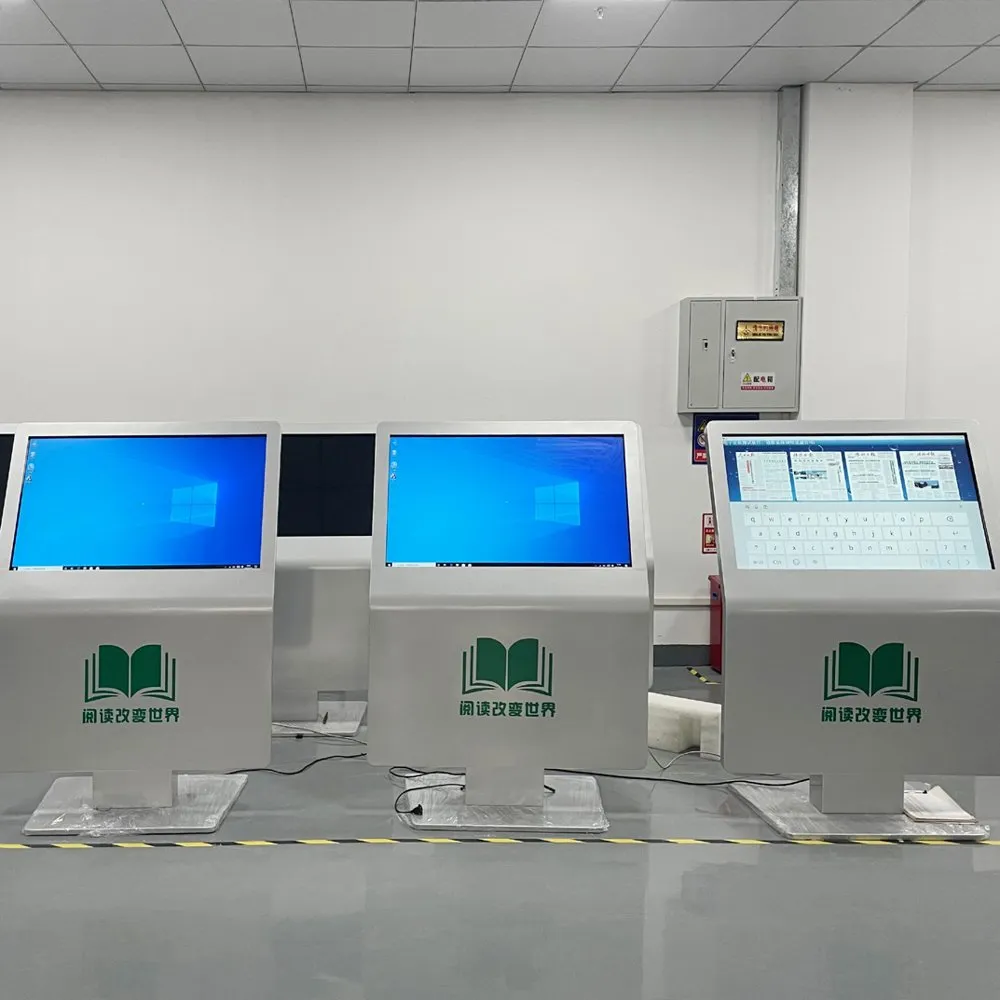
Photos of our touch kiosks installed in a service hall and a lobby are on the projects page.
3. The four catalog form factors
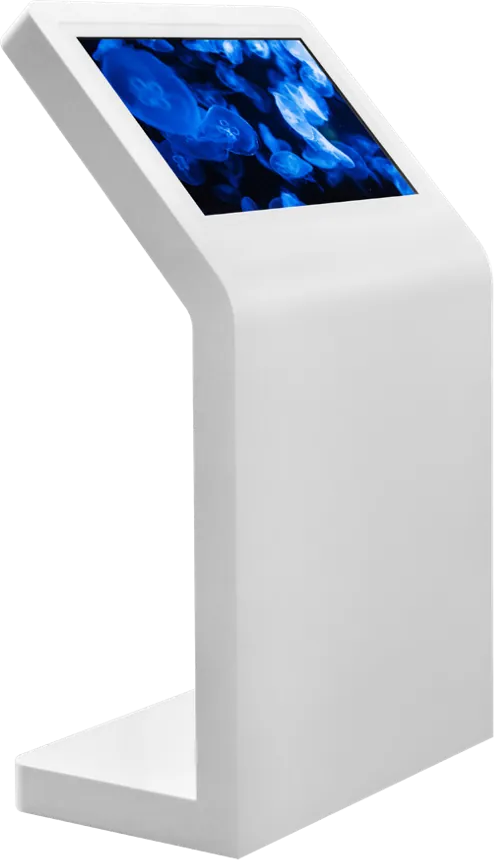
Choose the form by how long a visitor stays at the screen. Quick lookups suit an upright screen; browsing a map or a catalog for a minute or more suits a tilted screen. The brochure states that sizes, colors and styles are made to order, so treat the four models below as base designs.
| Model | Form | Standard finish | Best for | Notes from the catalog |
|---|---|---|---|---|
| K-shaped tilted kiosk | Tilted screen on a sculpted K-shaped metal base | Black; silver or white available | Museums, mall directories, corporate showrooms | Ergonomic tilt for standing users; anti-glare, scratch-resistant glass |
| Horizontal kiosk, aluminium base | Screen laid back on an integrated aluminium-alloy pedestal | Silver, white or black | Hospitals, station enquiry points, library catalogs | No visible fixings; several base styles; card reader or printer optional |
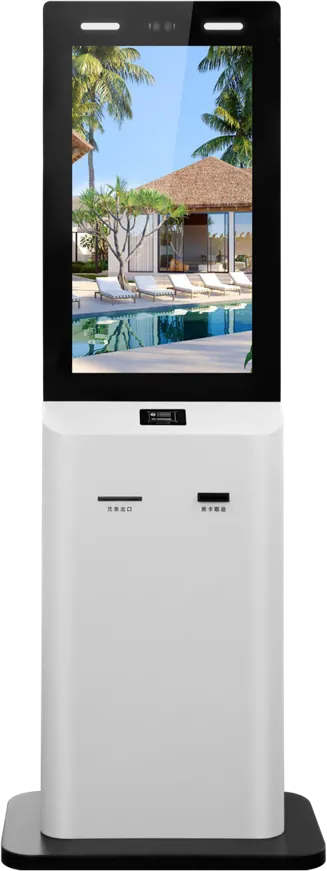
| Upright information kiosk | Vertical portrait or angled screen on a compact base | White; silver, black or custom | Corridors, office lobbies, notice points | Smallest footprint; logo panel; printer, scanner or camera optional |
| Tilted kiosk with wood trim | Tilted screen on a wide base | White with wood-grain or metal trim | Hotel lobbies, galleries, premium retail, sales centers | Usually Windows to reuse PC software; printer and scanner optional |
All four share a 10-point touch panel, 178° viewing, explosion-proof scratch-resistant tempered glass, Android or Windows, and Wi-Fi, Ethernet or 4G. The differences are footprint, viewing posture and finish. If visitors sit rather than stand, look at the interactive touch table instead.
4. Screen size, touch technology and operating system
Specify the screen size, the touch type and the OS together, because each changes the board and the cabinet. Our touch-kiosk catalog lists:
- Touch: 10-point capacitive or infrared.
- System: Android, or Windows on an Intel Core processor.
- Network: Wi-Fi, Ethernet and 4G.
- Screen size: not fixed in the catalog; made to order. State the size you need in the inquiry.
As general guidance, capacitive touch behind glass gives a light, phone-like feel, and infrared touch uses a frame of sensors around the screen and scales easily to large sizes. Test either one with gloves if your site is cold or medical.
For a fully specified example, the brochure's 43″ reading kiosk, a touch terminal for e-books, newspapers and notices, lists:
| Item | Value |
|---|---|
| Panel | 43″ TFT-LED, 16:9, 1920 × 1080, 350 cd/m², 1200:1, 178°, 5 ms |
| Touch | 10-point infrared |
| System | RK3399 at 1.8 GHz, 4 GB RAM, 32 GB storage, Android 8.1 or later |
| Network | Ethernet and Wi-Fi; 4G and Bluetooth optional |
| Power | AC 110–240 V, under 68 W working, under 3 W standby |
| Environment | 0–50 °C working, 10–85% humidity |
A dual-screen version runs two independent operating systems, so one screen plays ads while the other is used for reading. For the Android or Windows decision, read Android vs Windows for kiosks.
5. Software: wayfinding, query apps and kiosk mode
The software is what visitors judge. MJK, the factory behind DisplaySourcing, launched its own touch query software in 2007, alongside its B/S and C/S multimedia publishing system. You have three routes:
- Our touch query and publishing software: pre-installed, with content pushed over the network. The CMS guide covers how publishing and remote management work.
- Your own HTML site or web app: the kiosk opens it full screen in a locked browser. This is the fastest path if you already have a web directory or catalog.
- Your own Android APK or Windows program: we pre-install and test it before shipping. Existing PC wayfinding or catalog software usually means the Windows build.
Whatever runs, lock it in kiosk mode: the app starts on boot, the system bar and desktop are hidden, and the screen returns to the home page after a set idle time. Ask for a hidden admin exit protected by a password, and for remote restart so staff do not open the cabinet.
6. Accessibility and ergonomics
A query kiosk must work for a standing adult, a child and a wheelchair user. The figures below are general rules of thumb from accessibility practice, not MJK specifications; check the standard that applies where you install, such as the ADA in the United States or EN 301 549 in Europe.
- Reach: keep every touch target roughly between 380 mm and 1,220 mm above the floor, the common forward-reach range for wheelchair users.
- Tilt: a tilted screen lets a seated user see the whole display and reduces arm fatigue for long sessions. The tilted models suit wheelchair access better than a tall upright screen.
- Clear floor space: leave room in front of the kiosk for a wheelchair to approach, roughly 760 × 1,220 mm.
- Touch targets: make buttons large and well spaced, keep key buttons in the lower half of an upright screen, and avoid gestures that need two hands.
- Text and audio: high-contrast text, a language switch on the home screen, and audio output if your rules require it.
Tell us the target heights and tilt angle; tilt angle and base shape are listed customization items.
7. Content planning
A kiosk with stale or confusing content is ignored within weeks. Plan content before you order:
- Top five questions: list what visitors ask staff most often and put those on the home screen.
- Map and "you are here": each kiosk needs its own position and orientation on the map, so record where every unit stands.
- Owner and update routine: name who updates store lists, opening hours and notices, and how often.
- Idle screen: decide whether the kiosk shows a looping attract screen or ads when nobody touches it.
- Languages: decide the language list and who translates new content.
- Usage data: if your software logs searches, review them monthly to find missing content.
8. Public-space durability
A query kiosk is touched by thousands of strangers, so the glass, the base and the network matter more than peak specs.
- Glass: all four models use explosion-proof, scratch-resistant tempered glass; the K-shaped model adds an anti-glare surface. Ask for anti-glare wherever skylights or windows face the screen.
- Base and stability: the horizontal model uses an integrated aluminium-alloy base, and the wood-trim model a wide base. In busy areas, ask about bolting the base to the floor.
- Indoor only: the touch-kiosk catalog gives no IP rating or outdoor brightness, so treat these as indoor kiosks. For outdoor sites read the outdoor signage guide.
- Cleaning: agree a cleaning routine and a cleaner the glass coating tolerates.
- Network fallback: Ethernet where possible, 4G where no cable exists, and cached content so the kiosk still works offline.
- Locked access: keep USB ports and power switches inside a locked cabinet.
9. OEM and branding options
We build touch kiosks as an OEM factory, so the cabinet and the software image can carry your brand. Customization items listed for the touch-kiosk line:
- Stand shape, tilt angle and screen size
- Color, including RAL finishes, and trim material such as wood grain or metal
- Logo panel, printed logo and boot screen
- Printer, scanner, camera or card reader
- Pre-installed wayfinding or catalog software, or your own application
Our Made-in-China.com store lists an MOQ of 1 piece per listed product, which suits a pilot unit before a rollout. If you plan to resell kiosks under your own brand, read OEM vs ODM and the OEM service page.
10. Specification checklist for your RFQ
| Item | What to specify |
|---|---|
| Use and site | Wayfinding, catalog, notices or reading; indoor location and lighting |
| Form factor | K-shaped, horizontal, upright or wood-trim tilted; tilt angle |
| Screen | Size; portrait or horizontal orientation |
| Touch | Capacitive or infrared; glove use |
| System | Android, or Windows on Intel Core; RAM and storage if you have a requirement |
| Software | Our query software, your web app, or your APK or Windows program |
| Peripherals | None, or printer, scanner, camera, card reader |
| Network | Ethernet, Wi-Fi or 4G; country and carrier for 4G |
| Accessibility | Target touch heights and the standard you follow |
| Branding | Color, trim, logo panel, boot screen, packaging |
| Power | Plug type and voltage for the destination country |
Send it through the contact page. The sourcing guide covers samples, inspection and payment terms.
11. Common mistakes
- Buying a transaction kiosk with printer and card reader when visitors only need to look things up.
- Putting a tall upright screen where people browse maps for minutes, or where wheelchair users must reach the top.
- Ordering hardware before deciding who writes and updates the content.
- Leaving the desktop reachable because kiosk mode was not set up.
- Placing the kiosk facing a window without anti-glare glass.
- Forgetting to record each unit's position for the "you are here" marker.
- Choosing Android, then discovering the existing wayfinding software only runs on Windows.
Frequently asked questions
What is the difference between a touch query kiosk and a self-service kiosk?
A touch query kiosk is for looking things up: maps, directories, catalogs and notices. A self-service kiosk completes a transaction, so it adds payment, printing, ID or card modules.
Which touch kiosk form factor should I choose for wayfinding?
Use an upright kiosk in corridors and narrow lobbies where lookups are quick. Use a tilted, K-shaped or horizontal kiosk in atriums and halls where people browse maps for longer; tilted screens are also easier for wheelchair users.
Can the kiosk run our own wayfinding software or website?
Yes. We pre-install and test your Android APK, Windows program or web app in kiosk mode before shipping, or supply our own touch query software, which MJK has developed since 2007.
What screen sizes and touch types are available?
Screen size is made to order on all four models; state it in your inquiry. Touch is 10-point capacitive or infrared, with Android or Windows. The brochure's 43″ reading kiosk, for example, uses 10-point infrared touch on a 1920 × 1080 panel.