Digital class boards for schools: a buying guide
Short answer: A digital class board, also called an electronic class sign or classroom door display, is a wall-mounted screen outside each classroom that shows the class, its timetable and school notices, and records student attendance by face or card. Buy it as a school-wide system, not as a single screen: the back office, the attendance data and the cabling at every door matter more than the panel. This guide uses the published specifications of our 21.5″ class board so you can compare quotes on concrete numbers.
- A digital class board is a 21.5″ screen outside each classroom that shows class and timetable information and records attendance by face or card.
- Our class-board software has been in use since 2017; the school office manages classes, rooms, timetables, courses and media for the whole school.
- The board is an indoor device: 200 cd/m², DC 12 V 2 A adapter, Ethernet or Wi-Fi. Plan a socket and a cable at every door.
- Integration with your school-management system, UI language and card type decide the project; confirm all three before the sample.
1. What a digital class board is
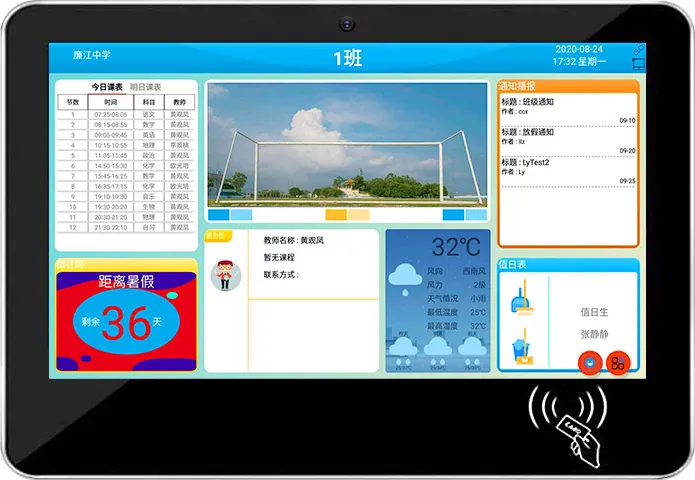
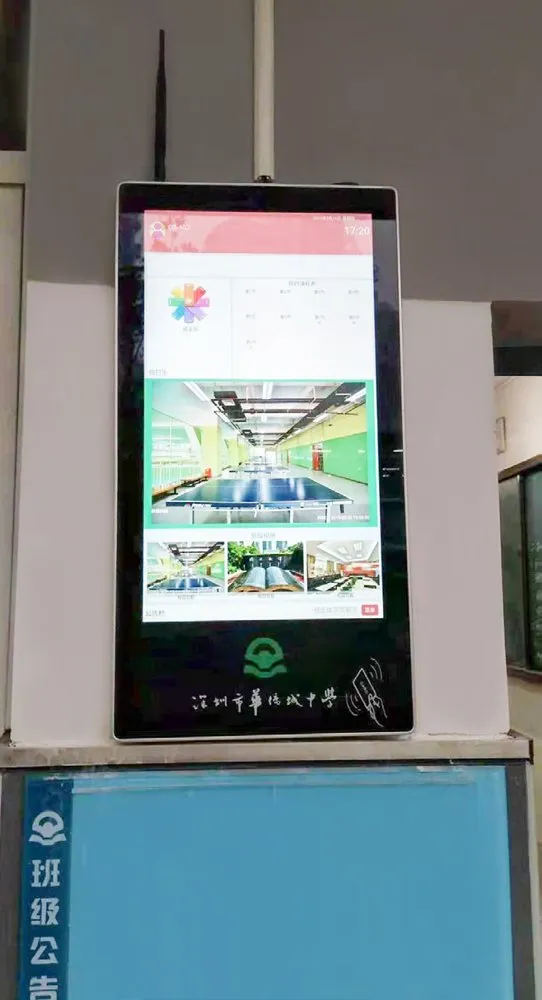
A digital class board is a small Android computer with a screen, camera and card reader, mounted beside a classroom door. It replaces the printed class nameplate and paper timetable, and it turns every classroom door into an attendance point.
MJK, the factory behind DisplaySourcing, launched its campus class-board system software in 2017, and it has been widely used since. The hardware sits in our campus and transit display line; the main model is the 21.5″ digital class board.
Who buys it
- Primary and secondary schools: one board per classroom, managed by the school office.
- Kindergartens: often with colored housings or cartoon artwork.
- Training centers: room schedules and course check-in.
- Integrators and distributors: selling the board with their own school software. See education for the full campus range.
2. What it shows and records
The brochure lists seven functions for the 21.5″ class board. These are the functions to compare, line by line, against other quotes:
| Function (brochure) | What the school gets |
|---|---|
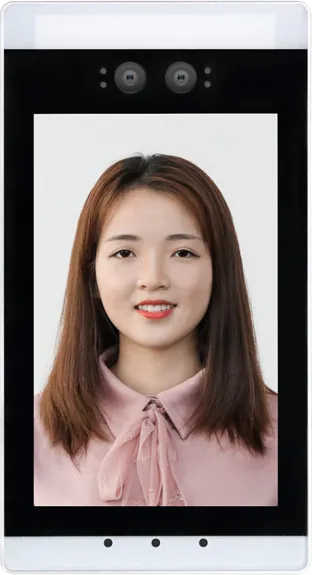
| HD camera face recognition | Students check in by looking at the board |
| Card check-in | Students check in with a campus card; a fallback when face fails |
| Built-in calling module | Students can phone stored family numbers from the board |
| Gate, class and whole-school attendance | Attendance viewed per gate, per class or for the whole school |
| School information display and management | School name, profile and notices on every board |
| Class, classroom, timetable and course definitions | Each board shows the right class and today's lessons |
| Campus video and image playback | School news, events and announcements between lessons |
Anything outside this list, such as parent messaging apps, homework posting, exam seating or visitor booking, is project software. It may be possible, but treat it as a requirement to confirm in writing per project, not as a standard feature.
3. Hardware specifications
The class board runs Android on a Rockchip RK3288 board. The brochure prints one spec sheet for the 21.5″ campus series:
| Item | Value |
|---|---|
| Panel | 21.5″ TFT-LED, 1920 × 1080, 200 cd/m², 1200:1, 170° / 170° viewing, 50,000 h+ rated life |
| Processor | RK3288 quad-core Cortex-A17, 1.8 GHz |
| Memory / storage | 2 GB DDR, 8 GB flash, SD card up to 64 GB |
| Network | Ethernet, Wi-Fi, 3G/4G optional, Bluetooth |
| Expansion | 3 serial ports for 4G, NFC, printer, card reader, scanner, ID reader |
| Camera | 2 MP or 5 MP MIPI camera (optional) |
| Audio | Built-in 2 × 5 W speakers, microphone support |
| Clock | RTC battery, scheduled power on/off |
| Power | Adapter, AC 100–240 V in, DC 12 V 2 A out |
The brochure photos show horizontal and portrait versions, a version with a corded handset for calls, and a card-tap area below the screen. Size, color and style are customizable. The spec sheet gives no face-library size, recognition time, weight or IP rating for the class board; ask for them on the sample, and compare with the dedicated face recognition terminals, which publish those figures. The RK3288 vs RK3399 article explains when a heavier board is worth it.
4. Back office and school-wide management
The back office is what the school actually uses every day. In our class-board system, the school office defines the school information, classes, classrooms, timetables and courses once, and every board picks up its own class and schedule. Attendance from the gate, each class and the whole school is viewed in one place, and campus videos and images are pushed to the boards from the same system.
- Scheduling: the RTC battery keeps time, so boards can switch off after school and at weekends and switch on before the first bell.
- Content rules: decide who may publish to all boards (the office) and who may post to one class (the head teacher).
- Data flow: decide whether attendance stays in our system or goes to your school-management system. Our team adapts attendance and class-board software per project; send the system name and its interface documents, and we confirm the integration before you order.
If the school also runs lobby or outdoor screens, read the digital signage CMS guide before deciding whether one platform should publish to everything.
5. How it fits a smart-campus rollout
The class board covers the classroom door. A full campus usually adds devices at the gate, inside the classroom and outdoors, and they should share one roster of students and cards:
- School gate: a floor-standing campus attendance kiosk or face terminals on pedestrian turnstiles record arrival and departure. See the face recognition terminal guide for gate integration.
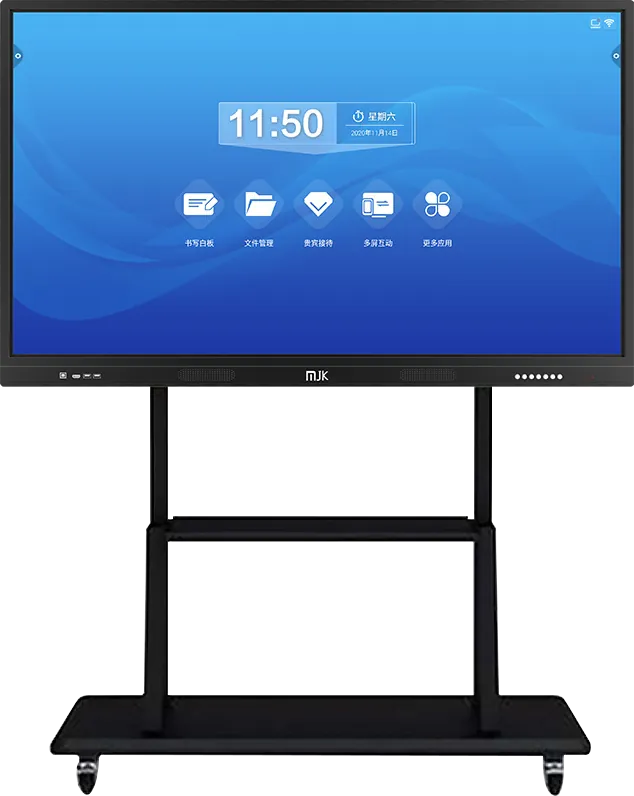
- Inside the classroom: a 55–86″ teaching panel with whiteboard software. See the interactive flat panel guide.
- Outdoors: a high-brightness campus notice screen on a pedestal.
- Health room: an ultrasonic height and weight station that reads IC/ID cards and uploads results.
- Dormitories and gyms: card or face lockers; see the smart locker guide.
Order matters: decide the card type and the student database first, because every device above reads the same card and the same records.
6. Compare the campus models
| Model | Where | Identification | Key specs |
|---|---|---|---|
| 21.5″ digital class board | Wall, beside each classroom door | Face, card | RK3288, 1920 × 1080, calling module, timetable and course display, campus video |
| 21.5″ standing attendance kiosk | Floor, at school gates, dormitories, canteens | Face, IC/ID card | 9:16 portrait, infrared temperature probe, date, time and ticker, sheet-metal housing, cartoon artwork |
| Ultrasonic height & weight station | School health room | IC/ID card | Imported ultrasonic probe, 8″ touch screen, voice readout, Android, data upload |
| 8″ face recognition terminal | Turnstile or pole at the gate | Face; card, QR, fingerprint options | 0.34 s recognition, binocular IR liveness, 11,000 faces on device |
| Teaching interactive panel | Classroom wall or trolley | None | 55–86″, whiteboard software, Android + PC dual system |
| Outdoor pedestal display | Campus squares and entrances | None | High-brightness industrial LCD, tempered glass, 7×24, networked publishing |
7. Installation, power and network
Install the class board on the corridor wall beside the classroom door, where students pass it on the way in. The installed photos on our projects page show portrait boards mounted next to the class nameplate.
- Height: set the camera and card area at the face and hand height of the youngest students using that room. Kindergartens and primary schools need a lower position than secondary schools.
- Power: the board uses a DC 12 V 2 A adapter, so each door needs a mains socket behind or near the board. Hide the adapter in a wall box or behind the housing so children cannot pull it.
- Network: run a wired Ethernet cable to each board where you can. Wi-Fi works, but dozens of boards syncing video at the same time can load a school access point. 3G/4G is an option for buildings without cabling.
- Light: 200 cd/m² is an indoor level. Avoid walls facing direct sun; for open-air corridors, place the board under a roof and confirm the site climate with us, because the brochure gives no IP rating for the class board.
- Cabling plan: survey every door first. Brick, glass and plasterboard walls need different fixings, and cable routes are cheaper to plan during holidays than during term.
8. Rollout planning for a school
Plan a class-board rollout in five steps. This is general guidance; adjust it to the size of the school.
- Pilot: install one sample at a real classroom door for two to four weeks, with the real card type and the real network.
- Prepare data: student roster, class lists, timetables, card numbers and, if face attendance is used, enrolment photos taken under even light.
- Consent: face data of minors is sensitive in most countries. Agree consent, retention and access rules with the school and parents before enrolment, and keep card check-in for students who opt out. This is not legal advice.
- Install by building: cable and mount during a holiday, then switch on one grade at a time.
- Train and hand over: show office staff how to edit timetables and publish, and keep a few spare boards for fast swaps.
9. Specification checklist for your RFQ
| Item | What to specify |
|---|---|
| Quantity | Classrooms, buildings, campuses; spares |
| Form | 21.5″ horizontal or portrait; other size if needed; handset version or not |
| Attendance | Face, card or both; card type (IC, ID or your campus card) |
| Camera | 2 MP or 5 MP |
| Network | Ethernet, Wi-Fi or 4G |
| Software | Our class-board system, or your school-management system with interface documents |
| Language | UI, timetable and voice prompt languages |
| Power | Destination plug type for the adapter |
| Look | Housing color, logo, boot screen, cartoon artwork |
| Other campus devices | Gate kiosks, turnstiles, teaching panels that share the same roster |
Send it through the contact page. The sourcing guide covers samples, inspection and payment terms.
10. OEM and localisation options
Most export class-board projects are OEM: your brand, your language, often your software. What we can change, confirmed per project:
- Housing: size, color, style and cartoon artwork, as shown in the brochure's custom range.
- Branding: logo, boot screen and packaging. See OEM service and OEM vs ODM.
- Interface language: the UI language, date formats and school-year structure are confirmed per project before the quote; ask to see them running on the sample.
- Software integration: your school-management system or your own Android app on our hardware, through the serial ports and network interfaces listed above.
- Card readers: the card type your campus already uses.
Our certificates page lists software copyrights, including class-board and attendance software.
11. Common mistakes
- Comparing screen prices and ignoring who builds and maintains the back office.
- Choosing a card type the gate kiosks or canteen cannot read.
- Planning network cables but no mains socket at each door.
- Mounting at adult height in a primary school.
- Assuming a foreign-language UI is standard without seeing it on the sample.
- Enrolling children's faces with no written consent and no card alternative.
- Installing during term instead of cabling a building during the holidays.
Frequently asked questions
What does a digital class board do?
It hangs beside each classroom door, shows school information, the class, its timetable and courses, plays campus videos and images, and records attendance by face recognition or card. Our board also has a built-in calling module.
What are the main specs of your class board?
21.5″ 1920 × 1080 panel at 200 cd/m², RK3288 quad-core 1.8 GHz, 2 GB memory, 8 GB flash plus SD up to 64 GB, Ethernet, Wi-Fi, optional 3G/4G, 3 serial ports, optional 2 or 5 MP camera and a DC 12 V 2 A adapter.
Can the class board connect to our school-management system?
Integration is done per project. Send the system name and its interface documents; we confirm the approach before you order. Without integration, the board runs on our class-board system, in use since 2017.
Is an English interface available?
The UI language is confirmed per project before quoting, together with date formats and school-year structure. Ask to see it running on the sample before you order.