Queue management systems: a buying guide to ticket kiosks, calling displays and counters
Short answer: A queue management system gives each visitor a numbered ticket, calls that number to a free counter, and records how long people waited and how long each service took. Buy it in this order: map the service flow, choose the hardware for each role, settle the software, then size the hall. This guide uses the stated specifications of our queue ticket kiosk and displays, and marks general rules of thumb as such.
- A queue management system is five parts on one network: ticket kiosk, counter caller, calling displays, voice and software.
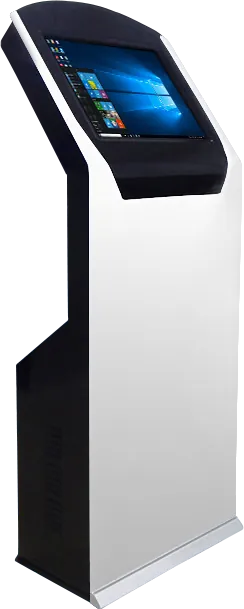
- Our queue ticket kiosk runs Windows on an Intel dual-core industrial board, so existing Windows queue software can stay.
- Size kiosks from peak arrivals and displays from the farthest seat; both rules of thumb are below.
- Confirm the calling software, the counter hardware and any ID or QR check before the kiosk cabinet is built.
1. What a queue management system is
A queue management system (QMS) is a set of networked devices and software that replaces a physical line with a numbered virtual queue. Visitors take a ticket, sit down, and walk to a counter only when their number is called.
Most systems, whatever the brand, have five parts:
- Ticket kiosk (ticket dispenser kiosk): a touch screen where the visitor picks a service and receives a printed ticket, sometimes after scanning an ID card or an appointment QR code.
- Counter caller or terminal: a keypad or software client at each counter. Staff press "next", "recall", "transfer" or "skip".
- Calling displays: a main screen in the waiting area showing the latest numbers and counters, plus a small display at or above each counter.
- Voice announcement: speakers that read out "number A023 to counter 4", ideally in each language your visitors speak.
- Management software and reports: service and counter setup, ticket rules, and reports on waiting time, service time and tickets per counter.
The brochure diagram for our queue ticket kiosk shows exactly this layout: the ticket kiosk and a wall-mount LCD main display on a local network with a wireless router, and four numbered counters, each with a counter display, a customer evaluator and a caller. The banking and government page shows where the kiosk sits next to the service and payment terminals in a hall.
2. How a ticket moves from kiosk to counter
A ticket passes through seven steps. Every step is a place where hardware or software can fail, so walk through it with your own services before you write the RFQ.
- Arrival: the visitor reaches the kiosk. Signage or the main display tells them which service to choose.
- Identification (optional): the visitor swipes an ID or bank card, or scans an appointment QR code. The software can then give priority or check a booking.
- Ticket issue: the software assigns a number from the service's series (A001, B001 and so on), and the printer issues a ticket with the number, service, people ahead and time.
- Waiting: the main display shows the numbers being served; the visitor sits within sight of a screen.
- Call: a staff member presses "next" on the counter caller. The server picks the next ticket by the rules you set, such as first come, priority or a counter that serves several services.
- Announcement: the main display and the counter display show the number and counter, and the voice system reads it out. If no one comes, staff recall it or skip to the next ticket.
- Service and rating: the counter display shows who is being served; at the end the visitor rates the service on the evaluator, and the record closes with its waiting and service times.
Write your service list and priority rules down first. The number of services, not the number of counters, decides how complex the kiosk screen and the software setup will be.
3. Catalog hardware for each role
Our catalog covers the ticket kiosk and the larger screens. Counter callers, evaluators and small counter displays belong to the queue software package and are confirmed per project, as the kiosk's option list states.
| Role in the system | Catalog model | What the sources state | Fit |
|---|---|---|---|
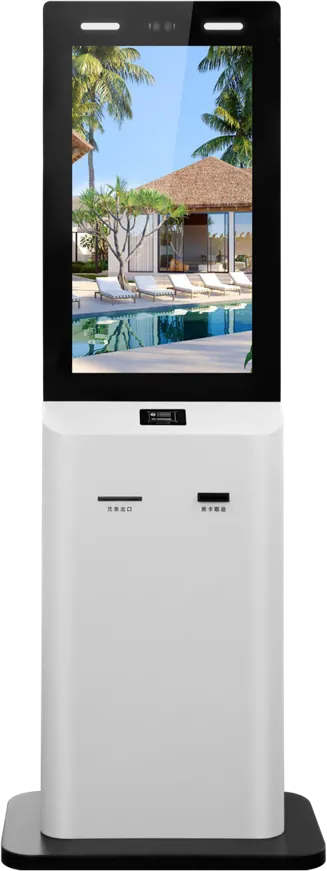
| Ticket kiosk at the entrance | Queue ticket kiosk | Infrared touch, FHD high-brightness screen, Intel dual-core industrial board, Windows, dual-channel stereo, cold-rolled steel cabinet with fan cooling | Designed for this role |
| Self-service to take load off the counters | 21.5″ dual-screen service terminal | 10-point capacitive touch, ID card reader, 2 MP face camera, card swipe and printing; second screen shows guidance, queue information or ads | Completes simple cases so fewer tickets reach a counter |
| Transactions with ID and bank card | Bank & government terminal | Bank-card slot, receipt outlet, QR scanner, biometric and ID modules, dual-screen display, OTA updates | Self-service next to the queue, not the ticket kiosk itself |
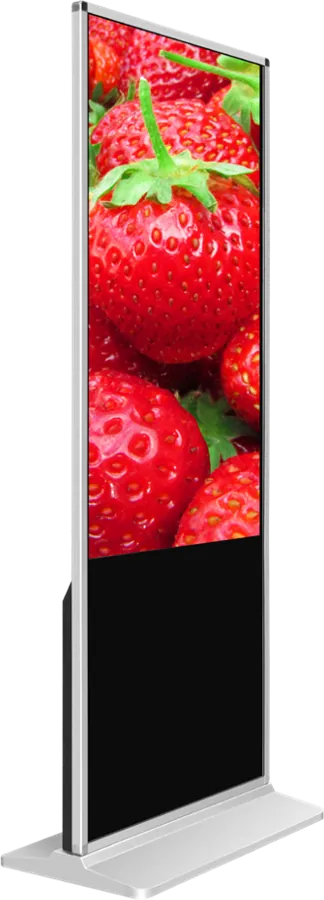
| Main waiting-area calling display | Wall-mount digital signage | 55″ 1920 × 1080, 350 cd/m², built-in speakers, horizontal or portrait mounting | Can be used as the main calling screen; the brochure diagram shows a wall-mount LCD in this place |
| Display above counters | Ceiling-hung double-sided display | 43″ FHD or 55″ 4K, two sides, same or different content, no floor space used | Can be used as a calling screen visible from both directions; our bank page lists it above service counters for notices |
| Strip display over a row of counters | Stretched bar LCD | Ultra-wide bar, split screen, cloud publishing, 7×24 operation | Can be used as a long calling strip if your queue software can output to it; confirm per project |
Where a screen is marked "can be used as", it is a standard signage display, not a dedicated calling device. Whether it shows live numbers depends on the queue software running on it or feeding it, so treat that as a software item in the quote.
4. Ticket kiosk specifications to check
A ticket kiosk stands in a public hall all day, is touched thousands of times and must print every time. The brochure lists these points for our queue ticket kiosk:
- Infrared touch interactive screen; fast response and long service life
- Full HD, high-brightness display
- Explosion-proof, dust-proof tempered glass
- Industrial mainboard with an Intel dual-core processor; multiple operating systems supported, Windows as built
- Dual-channel stereo sound system
- Cold-rolled steel cabinet with baked paint; anti-magnetic, anti-static
- Industrial axial fan with circulating airflow for cooling
The sources do not give the kiosk's screen size, printer model or ticket width, so specify them. For short tickets such as queue numbers, 58 mm thermal paper is a common width; 80 mm leaves room for a logo or a QR code. Ask for the paper roll diameter and a paper-low warning, because an empty printer stops the whole queue. Our kiosk peripherals article explains printer widths and other modules.
Infrared touch works with gloves and through the protective glass, which suits a public entrance. The Intel Windows board matters because many existing queue packages are Windows programs; the Android vs Windows guide covers the trade-offs.
5. ID cards, bank cards and appointment QR codes
Adding identification at the kiosk lets the software check a booking, give priority to certain customers, or attach the ticket to a case file. It also adds a module, a driver and a failure point, so add it only when a rule depends on it.
- ID card reader: common in government and social-security halls. Our self-service range offers ID/IC readers; the standard ID module reads Chinese second-generation ID cards, and export projects need a reader for the local document.
- Bank or membership card: lets a bank identify priority clients. Confirm the card type and who supplies the reader.
- Appointment QR code: the visitor books online, receives a QR code and scans it at the kiosk to get a ticket for the booked slot. This needs a QR scanner in the cabinet and a link between the booking system and the queue software.
Treat each module as a project item: we confirm the module, its driver and the cabinet cut-out before production. The QR scanner and ID/IC reader are on our self-service kiosk peripheral list.
6. Software and integration with existing systems
The software decides how the queue behaves; the hardware only carries it. Decide early which of three routes you take:
- Keep your existing queue software: the most common case for banks and agencies with a standard package. Send the program, its OS version and the drivers it expects; the Windows kiosk board lets it run unchanged in most cases.
- Use queue software we supply: the kiosk's option list includes queue software in your language, with calling displays and evaluators per counter. Agree the ticket layout, languages, services and reports in writing.
- Connect to a booking, CRM or case system: appointments, customer lookup or case numbers need an interface. Send the interface documents with the inquiry; integration is confirmed per project.
For reports, ask at minimum for waiting time and service time per service and per counter, tickets issued per hour, and no-show counts. These numbers tell you whether to open another counter, move staff or add a kiosk. If you will resell the system under your own brand, read OEM vs ODM before deciding who owns the software.
7. Sizing: how many kiosks and displays per hall
There is no standard formula; the figures below are general rules of thumb used to start planning, not MJK specifications. Adjust them after a week of real ticket data.
| Item | Rule of thumb | Why |
|---|---|---|
| Ticket kiosks | One per main entrance; add one when peak arrivals exceed about 3 per minute, or when ID or QR checks lengthen each ticket | A simple ticket takes 10–20 seconds; an ID check takes longer |
| Spare kiosk | At least two kiosks in halls that cannot open without tickets | One printer jam should not stop the hall |
| Main calling display | Every seat within sight of a main screen; a second screen for an L-shaped or split hall | Visitors who cannot see their number come to ask staff |
| Character height | About 25 mm of character height per 3 m of viewing distance | A common signage readability rule |
| Counter display | One per counter, at or above it | Confirms the right counter when the visitor arrives |
| Speakers | Voice coverage in every waiting zone, including corridors | Screens are not seen by people looking at their phones |
Example: a branch with one entrance, 8 counters and seats up to 12 m from the main wall. One kiosk covers normal days and a second gives a spare. At 12 m the rule asks for roughly 100 mm characters; a 55″ screen, with a picture area of 1211.4 × 682.2 mm, can show several rows of numbers that size with room left for notices.
8. Where queue systems are used
- Bank branches: tickets separate cash, account and advisory services, with priority for selected clients. Self-service terminals next to the kiosk take simple cases off the counters. See banking and government.
- Government and social-security halls: many services, ID checks and appointments; the dual-screen terminal can show queue information on its second screen.
- Hospitals and clinics: our kiosk sources list hospitals and clinics as a use. Registration, payment and pharmacy each run their own queue, and calling must work well for older patients with clear voice and large numbers. This is a general use case; medical system links are confirmed per project.
- Telecom service halls: telecom halls are a listed use. Numbers separate new contracts, repairs and bill payment.
- Utilities: bill payment moves to a payment kiosk; tickets are kept for disputes and new connections.
- Hotels and transport hubs: front desks and service centers with peaks at check-out or departure. See hotels and transportation; self check-in is covered in the hotel kiosk guide.
9. Specification checklist for your RFQ
| Item | What to specify |
|---|---|
| Sites | Number of halls, entrances, counters and seats; floor plan with distances |
| Services | Service list, ticket series, priority rules, opening hours |
| Ticket kiosk | Quantity, screen orientation, ticket printer width and ticket layout |
| Identification | ID reader (document type), card reader, QR scanner, or none |
| Counters | Caller keypad or software client, counter display, evaluator |
| Calling displays | Main screen size and count, mounting (wall, ceiling, bar), content besides numbers |
| Voice | Languages, speaker zones, who supplies the speakers |
| Software | Your existing package (with OS and drivers), our software, or integration with booking or CRM systems |
| Network and power | Wired or wireless links per device; plug type and voltage |
| Branding | Cabinet color, logo, ticket header, boot screen |
Send it through the contact page. Samples, inspection and payment terms are covered in the sourcing guide, and the enclosure guide explains cabinet options.
10. Common mistakes
- Buying kiosks and screens before choosing the queue software that must drive them.
- Designing the kiosk menu around departments instead of what visitors think they came for.
- One kiosk and no spare, so a paper-out stops the whole hall.
- A main display that half the seats cannot read, then staff answering "has my number been called?".
- Voice announcements in one language in a hall that serves several.
- Adding ID or QR readers without a rule that uses the data.
- No reports, so nobody knows the real waiting time or which counter is overloaded.
For general touch-screen and enclosure questions outside the queue, see the touch kiosk buying guide.
Frequently asked questions
What does a queue management system include?
A ticket kiosk, a calling terminal at each counter, counter displays and a main waiting-area display, voice announcement, optional customer evaluators, and management software with reports, all on one network.
Can your queue ticket kiosk run our existing queue software?
In most cases yes. It uses an industrial board with an Intel dual-core processor running Windows, which many queue packages need. Send the program and its driver requirements and we test it before shipment.
Can the kiosk read ID cards or appointment QR codes?
Yes, as project options. An ID/IC reader or QR scanner is fitted in the cabinet, and the booking or ID logic runs in the queue software. We confirm the module, driver and interface before production.
How many ticket kiosks does a bank branch need?
As a rule of thumb, one per main entrance plus a second unit as a spare or for peaks above about 3 arrivals per minute. Check the number against a week of real ticket data.