Digital signage content management: how B/S and C/S publishing systems work and how to choose
Short answer: A digital signage CMS (content management system) is the software that puts the right video, images and text on the right screens at the right time, and proves afterwards that they played. Choose it in this order: where the server runs, how operators reach it (browser or desktop client), which features your content plan needs, and what happens when the network drops. This guide explains both architectures and states only what our brochure and data sheets list for our own publishing system.
- A signage CMS uploads media, lays it out in split-screen templates, schedules it and sends it to groups of screens, then logs what played.
- B/S runs in a web browser with nothing to install; C/S uses a desktop client. Both are in our publishing system, which we have built since 2007.
- Decide where the server sits (cloud, your own server or offline USB/SD) before you decide how many screens to buy.
- Design content at the panel’s native resolution and orientation, and put CMS, network and power schedule in the RFQ.
1. What a digital signage CMS does
A digital signage CMS is a server plus a player app: the server stores media, playlists and device records, and the player on each screen downloads its schedule and plays it from local storage. Operators never touch the screens; they work in the CMS and press publish.
Every signage CMS does five jobs:
- Media library: upload video, images, text and web content once.
- Layout: divide the screen into zones with a template, for example video on top, images in the middle, scrolling text at the bottom.
- Schedule: decide what plays at which time of day, on which days.
- Distribution: send a program to one screen, a group or the whole network.
- Monitoring and logs: see which screens are online and what each one played.
MJK, the factory behind DisplaySourcing, started as a signage mainboard designer in 2005 and launched its own B/S and C/S multimedia publishing software in 2007. Our digital signage displays ship with it; the remote-control parts of the system are the subject of this guide.
2. B/S vs C/S: two ways to reach the same server
B/S (browser/server) means operators log in through a web browser; C/S (client/server) means they install a desktop client that talks to the server. The screens behave the same either way. The difference is who operates the system and from where.
| Point | B/S (browser/server) | C/S (client/server) |
|---|---|---|
| Operator access | Any computer with a browser and an account | Computers with the client installed |
| Installation and updates | Nothing on the operator side; update the server once | Install and update the client on each operator PC |
| Typical users | Many editors in different offices or stores | A small central team at fixed workstations |
| Large file handling | Uploads go through the browser | The client manages local folders of material |
| Our version (brochure) | Program editor in the browser; home screen with program production, publishing management, terminal information and real-time monitoring | Modules for material, secondary server, terminals, playback, users and logs, plus an electronic map |
Our B/S editor adds widgets to a layout: background, video, image, scrolling text, combined video/image, clock, web page, text and weather forecast, then saves the layout and publishes it with one click. In our C/S client the operator first puts images, video and text into material management, then opens playback management to set the play mode and play time.
Rule of thumb: choose B/S when store managers or several departments edit content; choose C/S when one marketing team runs the network from head office.
3. Cloud, on-premise or offline
Architecture answers "how do operators log in"; deployment answers "where does the server run". These are separate decisions, and deployment matters more for IT approval.
| Deployment | Server location | Suits | Watch out for |
|---|---|---|---|
| Cloud | A hosted server on the internet | Chains with screens in many cities on store broadband or 4G | Data residency rules; monthly hosting cost; every screen needs internet |
| On-premise / LAN | Your own server inside your network | Banks, government halls, factories and campuses where IT forbids outside servers | You maintain, back up and secure the server |
| Offline (USB / SD) | No server; content is copied to the player | One to a few screens, or sites with no network | Someone walks to every screen for each update; no play logs centrally |
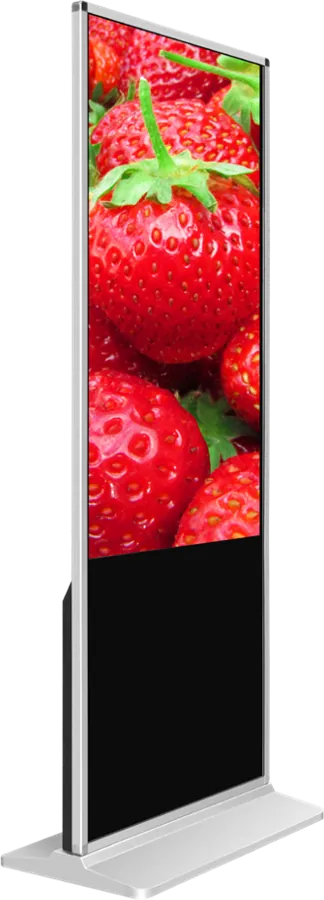
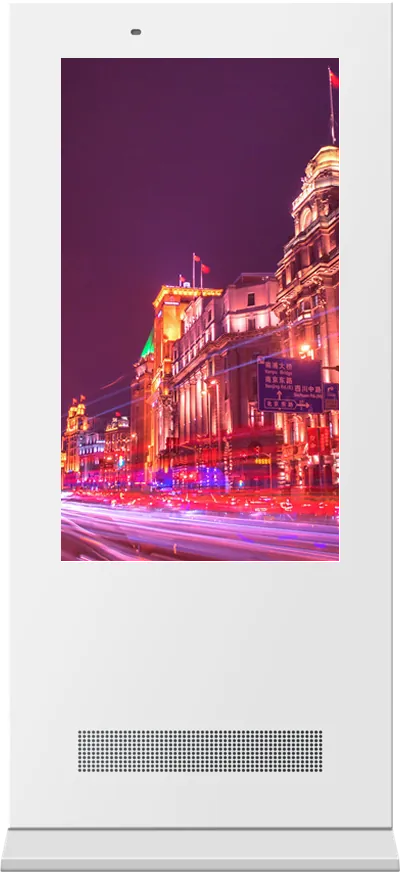
Our players cover all three. The outdoor floor-standing model lists networked program publishing, local program update and standalone playback. Indoor signage and the stretched bar display play from SD card or USB, and the A-frame poster plays a USB playlist. The stretched bar brochure page lists cloud publishing and cloud control; for other models, tell us whether the server must sit on your own network and we confirm the setup with the quote.
4. Features in our publishing system
The table lists what our brochure states for the publishing system and the signage players. If a feature you need is not here, ask before you order rather than assume it.
| Feature | What the brochure lists |
|---|---|
| Split screen | Free split-screen layouts and multiple publishing templates; split-screen and full-screen mixed playback on the bus stop sign |
| Text and widgets | Scrolling text, clock, web page, text and weather forecast |
| Scheduling | Play time settings; time-slot program management; auto play, list play and timed insertion; real-time ad insertion on outdoor models |
| Groups and users | Group management and information publishing; tiered permission management |
| Logs and statistics | Detailed play log statistics; footfall analysis and statistics |
| Monitoring | Remote terminal monitoring and control; ad playback monitoring on the on-bus unit |
| Weak networks | Resumable downloads; breakpoint memory after power loss on the bus stop sign |
| Power schedule | Scheduled power on/off by day, week or month on the outdoor model; several on/off periods per day on the bus stop sign |
| Offline playback | SD card and USB playback |
| Upgrades | USB, SD card and remote system upgrade on the portable outdoor poster |
| Languages | Multiple display languages |
Footfall statistics need an input such as a camera; say in the inquiry if you want them, because the camera is an option on most models.
5. Running your own or a third-party CMS on Android
You do not have to use our software. If your company already runs a signage CMS, choose an Android build and load its player app instead. Our Android boards and media players list an APK installer among the system apps, and the board firmware is supplied with your launcher and boot logo.
General steps for a third-party player on Android:
- Send us the APK and your CMS server address, or the provisioning code your vendor uses.
- We install it on the sample and set it to start on boot.
- Kiosk mode: a custom launcher opens only the player and hides system settings, so staff cannot exit to the Android home screen.
- Test the sample for a week of real schedules, including a power cut and a network drop.
- Approve the sample; production units ship with the same image.
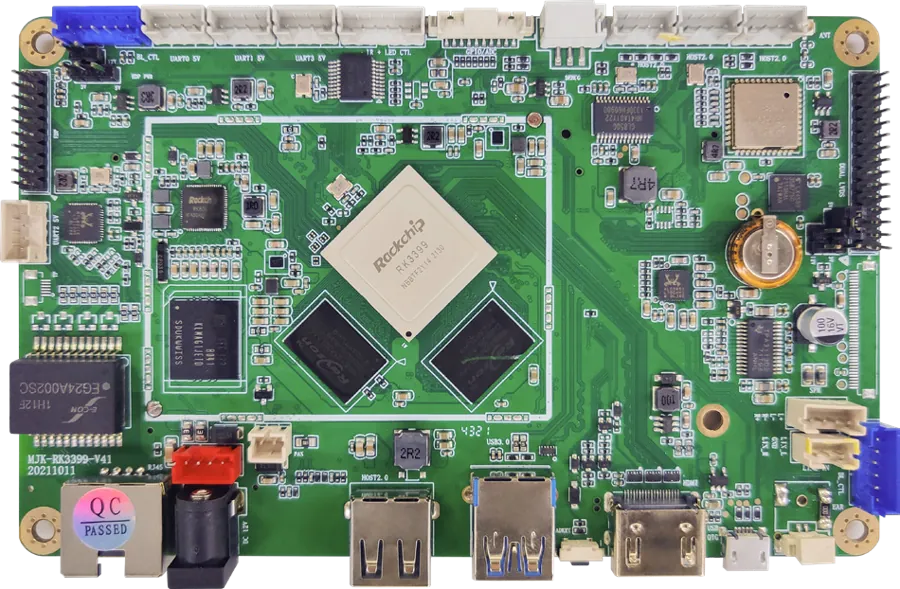
Check with your CMS vendor which Android version its player supports. Our RK3399 board runs Android 7.1 or 8.1, and the RK3288 vs RK3399 comparison is in our board article. If your CMS player exists only for Windows, read Android vs Windows: our indoor signage is also available with an Intel Core i3, i5 or i7 PC.
6. Network and security basics
A signage network is a set of unattended computers in public places, so treat each screen as an IT device. This section is general guidance.
- Connection type: wired Ethernet wherever possible; Wi-Fi is built in on our indoor signage, and 4G is an onboard option for sites without fixed lines.
- Separate network: put players on their own VLAN or guest network, away from tills and office PCs.
- Outbound only: with a cloud server, players should only connect out to the server; do not open inbound ports at stores.
- Accounts: change default passwords, give each editor a personal account, and use tiered permissions so a store can edit its own zone but not head-office campaigns.
- Physical access: lock USB and SD slots behind the service door so nobody can load their own content.
- Bandwidth: players download a program once and play it locally, so publish large video outside opening hours on 4G or shared store lines.
7. Content specifications: resolution, orientation and formats
Make content at the panel’s native resolution and orientation; the player then shows it pixel for pixel without scaling. A portrait screen needs portrait artwork, not a rotated landscape file.
| Model | Native resolution | Orientation |
|---|---|---|
| 55″ indoor floor-standing | 1920 × 1080 | Portrait cabinet: design at 1080 × 1920 |
| 55″ wall-mount | 1920 × 1080 | Landscape or portrait |
| Ceiling-hung double-sided | 43″: 1920 × 1080 · 55″: 3840 × 2160 | Two faces back-to-back |
| 43″ portable outdoor poster | 1080 × 1920 | Portrait |
| 4K media player box | Up to 4K output | Matches the connected screen |
Formats from our data sheets: the RK3399 board decodes H.265, H.264, VP8, WMV, AVS, H.263 and MPEG4 at 4K, 2K and 1080P, and shows JPG, BMP and PNG images. The portable outdoor poster plays more than 30 video formats including AVI, RMVB, MKV, WMV, MOV, MP4, FLV, TS and 3GP up to 1080P, and BMP, JPEG, PNG and GIF images. As a general rule, export video as H.264 MP4 at native resolution; H.264 is listed on the data sheets of both our RK3288 and RK3399 boards. Keep scrolling text short enough to read in one pass, and test outdoor content in daylight; the outdoor signage guide covers brightness.
8. Scaling from 10 to 1,000 screens
Ten screens can be run by hand; a thousand cannot. What changes is structure, not software features.
- 10 screens: one group, one or two templates, one editor. USB updates are still workable for a single site.
- 100 screens: groups by region and store type; a naming rule for every device (city, store, position); a weekly check of offline devices and play logs.
- 1,000 screens: tiered permissions (head office, region, store), fixed templates so stores only change their own zone, staggered publishing so all players do not download at once, and a written process for replacing a failed unit with the same image.
Plan the server for the final size, not the pilot. Our C/S client includes a secondary-server module next to material, terminal, playback, user and log management; tell us the target screen count and how many sites, and we propose the server layout. Chains with existing TVs can join the same network with the media player box, which the brochure describes as publishing to every store from one console. Store-by-store examples are on the retail page, and bus stops, on-bus bars and stations on the transportation page, including the stretched bar display and electronic bus stop sign.
9. Specification checklist for your RFQ
| Item | What to specify |
|---|---|
| Screens | Models, sizes, orientation, indoor or outdoor, quantity now and in two years |
| CMS | Our B/S or C/S system, or your own CMS (send the APK and supported Android versions) |
| Deployment | Cloud, your own server on the LAN, or offline USB/SD |
| Operators | Number of editors, locations, permission levels |
| Content | Layouts, zones, scrolling text, weather, web pages, languages |
| Schedule | Opening hours, power on/off times, time slots, insertions |
| Network | Ethernet, Wi-Fi or 4G per site; firewall and VLAN rules |
| Reporting | Play logs, footfall statistics (camera option) |
| Branding | Boot logo, launcher, housing color, packaging |
Send it through the contact page. If the screens will carry your own brand, read OEM vs ODM; the sourcing guide covers samples, inspection and payment.
10. Common mistakes
- Buying screens first and choosing the CMS after delivery, then finding the player app does not support the board.
- Designing landscape content for portrait cabinets and letting the player scale it.
- Using a cloud CMS where IT forbids outside servers, or an on-premise server nobody maintains.
- Giving every store manager full rights, so one store overwrites a national campaign.
- No power schedule: screens run all night, or switch off before closing.
- No offline plan: when the network drops, nobody knows whether the screen keeps playing.
- Never reading the play logs, so a dead screen is found by a customer, not by you.
Frequently asked questions
What is the difference between a B/S and a C/S digital signage system?
Both control the same screens from a central server. B/S is operated in a web browser with nothing to install; C/S uses a desktop client installed on each operator PC. Our publishing system, developed since 2007, comes in both versions.
Can digital signage keep playing when the network goes down?
Yes. Players download programs and play them from local storage, and our signage also plays from SD card or USB. The system supports resumable downloads, so an interrupted transfer continues where it stopped.
Can I use my own CMS on your digital signage?
Yes, on Android builds. Send us the player APK and server details; we install it, set it to start on boot and lock the unit to that app with a custom launcher. Confirm the Android versions your player supports first.
Should I choose a cloud or an on-premise signage server?
Choose cloud for chains with screens spread across many cities and no central IT network. Choose an on-premise server on your LAN when IT rules forbid outside servers, as in many banks, government halls and factories.