Dual-screen POS terminals for retail and restaurants: a buying guide
Short answer: A dual-screen POS terminal is a checkout computer with a touch screen for the cashier and a second display facing the customer. Choose it in this order: the software you will run, the operating system that software needs, the peripherals at the counter, and the customer display content. This guide uses the real specifications of our 15.6″ POS so you can compare quotes on concrete numbers.
- A dual-screen POS gives the cashier a touch screen and the customer a second display for the order total and promotions.
- Pick Android (RK3288, 2 GB + 16 GB) for new POS apps; pick Windows (Core i3-3217U, 4 GB + 128 GB) when your POS software only runs on Windows.
- List every peripheral with brand, model and interface: receipt printer, scanner, cash drawer and card terminal decide whether checkout works on day one.
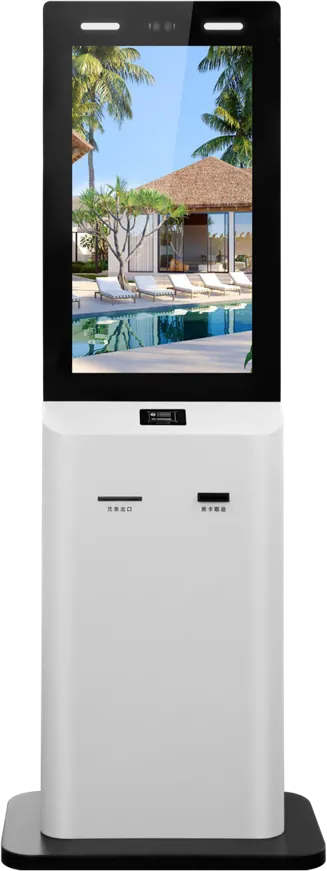
- Use the counter POS for staff-served orders and a self-ordering kiosk for the queue; both must post orders into the same POS back office.
1. What a dual-screen POS terminal is
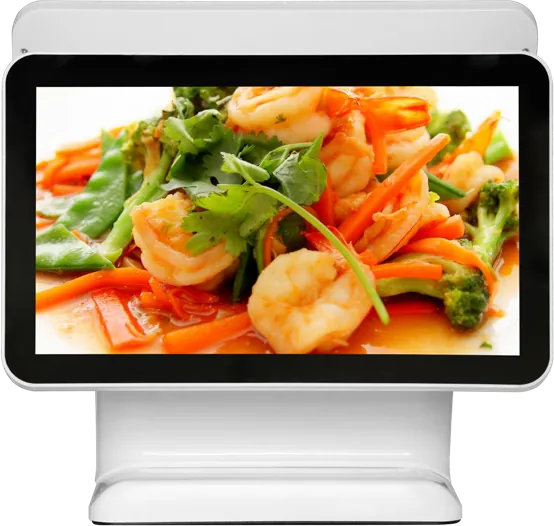
A dual-screen POS terminal is an all-in-one cash register: a mainboard, a touch screen for the cashier and a customer-facing display in one housing on a counter stand. The cashier rings up items, takes payment and prints the receipt; the customer watches the items and the total on their own screen.
It replaces the older setup of a PC tower, a separate monitor and a pole display. One power cable, one housing and one board to manage. The range is on our POS and dual-screen terminal page.
The 15.6″ size is a counter size: large enough for a product grid with photo buttons, small enough to leave room for a scanner, a printer and the bagging area. At 1920 × 1080 the cashier can see a full order list without scrolling on most tickets.
Where they are used
- Supermarkets, convenience stores and pharmacies: scan-and-pay checkouts with barcode scanners and cash drawers. See retail.
- Restaurants, quick-service counters and cafés: staff-taken orders, receipts and order numbers. See restaurants and QSR.
- Fashion, beauty and specialty stores: checkout plus brand promotion on the customer screen.
2. Operator screen and customer display: what each one does
The two screens show different content at the same time. The main board outputs one picture to the cashier and another to the customer, so the second screen does not need its own computer.
| Screen | Faces | During checkout | Between orders |
|---|---|---|---|
| Operator screen, 15.6″ capacitive touch | Cashier | Item entry, discounts, payment method, receipt | Order list, stock lookup, shift reports in your POS app |
| Customer display, same size or smaller | Shopper | Items, prices and the order total for confirmation | Promotion images or video, member offers |
Order confirmation is the main job. When the customer sees each line and the total, fewer disputes reach the end of the transaction. The second job is selling: the customer screen plays posters or video while people wait, and the built-in stereo 15 W + 15 W speakers can carry sound for video ads. Keep the audio low at a busy counter.
Decide early whether the customer display only shows content or also takes touch input, for example for a signature or a tip choice. Both are options on our customer-facing display; your POS software must support the touch flow.
3. Compare the catalog models
Our catalog lists one terminal in two builds, plus the customer display as a configurable part of it.
| Model | Screens | Computing | Key specs |
|---|---|---|---|
| 15.6″ dual-screen POS, Android build | 15.6″ 1920 × 1080 capacitive touch + customer display | RK3288 quad-core 1.8 GHz, 2 GB + 16 GB, Android | Ethernet, Wi-Fi; adjustable screen angle; ≤ 32 W |
| 15.6″ dual-screen POS, Windows build | 15.6″ 1920 × 1080 capacitive touch + customer display | Core i3-3217U 1.8 GHz, 4 GB + 128 GB, Windows | Ethernet, Wi-Fi; adjustable screen angle; ≤ 32 W |
| Customer-facing display | Same size as the main screen or smaller; touch or display-only | Driven by the POS main board, asynchronous content | Stereo 15 W + 15 W; white or black housing |
Shared panel specifications from the brochure: LED TFT, active area 344.16 × 193.59 mm, 16:9, 220 cd/m², 800:1 contrast, 8 ms response, 178° / 178° viewing angle, backlight life over 50,000 hours, AC 110–240 V input. The product feature list also names 4G next to wired and Wi-Fi; the spec table lists Ethernet and Wi-Fi only, so state 4G in your inquiry if you need it.
4. Android or Windows POS hardware
Let the software decide. If your POS app runs on Android or is new, choose Android. If your business already runs a Windows POS suite, choose Windows and avoid a software migration.
| Item | Android build | Windows build |
|---|---|---|
| Processor | RK3288, quad-core 1.8 GHz | Intel Core i3-3217U, 1.8 GHz |
| Memory + storage | 2 GB + 16 GB | 4 GB + 128 GB |
| OS license | None | Windows license per unit |
| Power | Lower | Higher; whole terminal ≤ 32 W |
| Best fit | New POS apps, chains that want one APK and remote updates | Existing Windows POS software, drivers that exist only for Windows |
The full comparison, including lock-down and remote management, is in Android vs Windows for kiosks. The RK3288 vs RK3399 note explains what the Android board can handle.
5. Peripherals: printer, scanner, cash drawer, card terminal
The terminal is the hub; the peripherals finish the sale. Our POS connects receipt printers, QR and barcode scanners, cash drawers and card readers through USB and serial ports. A printer, scanner or card reader can also be built in as a custom option.
- Receipt printer: thermal printers need no ink, only paper rolls. 80 mm is the usual width for itemized receipts; 58 mm suits short slips. Restaurants often add a second printer in the kitchen.
- Scanner: a 2D scanner reads product barcodes and QR payment codes from phone screens. A 1D scanner reads only linear barcodes.
- Cash drawer: in many setups the drawer is wired to the receipt printer and opens when the printer receives a kick command. Confirm which port your drawer uses.
- Card terminal: a certified terminal from your bank or payment provider handles card data; the POS app receives only the result. Give us its model if it needs a bracket.
Write the brand and model of each device in the RFQ, not just "printer" or "scanner". Two printers of the same width can use different command sets and drivers, and that decides whether your POS app can print to them without extra work. If you already own peripherals in your stores, send the list so the sample is tested with the same models.
Count every device against the available ports before you order. The kiosk peripherals note covers printer widths, scanners and readers in detail.
6. POS software compatibility
The hardware is general-purpose; your POS software makes it a till. We pre-install your POS app on request, but compatibility is confirmed per project.
- Send the software name, version and supported operating systems.
- List the drivers it needs for each printer, scanner and drawer.
- Say how the customer display is driven: by the POS app itself, or by a separate ad player.
- Test complete sales on the sample, including refunds, receipt reprints and drawer opening.
If the customer screen must also run scheduled ads, decide who changes the content and how. Our digital signage CMS guide explains scheduling and publishing.
7. Counter POS vs self-ordering kiosk
A counter POS is operated by staff; a self-ordering kiosk is operated by the customer. Most busy restaurants use both, with orders from each landing in the same POS back office and kitchen.
| Dual-screen POS | Self-ordering kiosk | |
|---|---|---|
| Operated by | Cashier | Customer |
| Best for | Cash payments, complex orders, returns, phone orders | Peak-hour queues, repeat menu orders |
| Payment | Cash drawer, card terminal, QR scanner | QR or NFC, card terminal in the cabinet |
| Form | 15.6″ countertop | Floor-standing or wall-mount |
| Printer | External or built-in receipt printer | Built-in receipt printer |
A typical combined flow: the guest orders and pays at the kiosk, the order goes to the POS back office and the kitchen printer or kitchen display, and the order number is called at the counter. The cashier sees the same order on the POS and can reprint, refund or change it. If the two systems are separate, staff end up re-typing orders, which is where errors start.
Kiosks take routine orders off the counter; the till handles cash, exceptions and customers who prefer to order from a person. Check that your POS software supports both channels before buying either. For the kiosk side, read how to choose a self-ordering kiosk or see the self-ordering kiosk.
8. Counter ergonomics and durability
A POS is used for full shifts, often by several people. Plan the counter around the person using it.
- Screen angle: our main screen tilts, so cashiers can set it for standing or seated work and reduce glare from ceiling lights.
- Customer sightline: place the customer display where the shopper stands, not behind a sneeze guard or a stack of bags.
- Cable route: plan holes in the counter for power, network, printer and drawer cables, so nothing hangs where staff stand.
- Environment: the terminal is rated 0–40 °C operating and −10–50 °C storage. Keep it away from fryers, ovens and sinks.
- Cleaning: wipe the capacitive glass with a damp cloth and a cleaner your POS maker approves; never spray liquid at the bezel.
- Power: the terminal draws ≤ 32 W on 110–240 V. A small UPS keeps a transaction from being cut by a power dip.
9. OEM options for your brand
If you sell POS hardware under your own name, the factory can change the following on our 15.6″ platform:
- Android or Windows configuration
- Housing color (white or black on the customer display) and your logo
- Built-in printer, scanner or card reader
- Customer display size, touch or display-only
- Your POS software pre-installed
MJK, the factory behind DisplaySourcing, has designed display mainboards since 2005 and builds 1,000+ units a day in its 10,000 m² factory. See OEM service for branding, and OEM vs ODM if you need a new housing.
10. Specification checklist for your RFQ
| Item | What to specify |
|---|---|
| Quantity and sites | Units, stores, retail or restaurant counters |
| Operating system | Android (RK3288) or Windows (Core i3) |
| POS software | Name, version, who installs it |
| Customer display | Same size or smaller; touch or display-only; ad content source |
| Printer | External or built-in; 58 or 80 mm; kitchen printer |
| Scanner and card terminal | 1D or 2D scanner; terminal model and bracket |
| Cash drawer | Model and how it opens |
| Network | Ethernet, Wi-Fi or 4G |
| Power | Plug type and voltage per country |
| Branding | Housing color, logo, boot screen, packaging |
Send it through the contact page. The sourcing guide covers samples, inspection and payment terms, and the cost breakdown shows which options move the price.
11. Common mistakes
- Buying the Android build before checking that the POS software has an Android version.
- Ordering peripherals without counting USB and serial ports.
- Assuming the cash drawer opens by itself, without checking it is wired to the printer or the terminal.
- Leaving the customer display blank between orders instead of running promotions.
- Testing only a sale on the sample, not refunds, reprints and end-of-day reports.
- Installing kiosks and tills that send orders to different systems.
- Putting the terminal next to a fryer or sink.
Frequently asked questions
What is a dual-screen POS terminal?
It is an all-in-one cash register with a touch screen for the cashier and a second display for the customer. Ours has a 15.6″ 1920 × 1080 capacitive main screen; the customer display shows the order total during checkout and plays promotions between orders.
Should I choose an Android or Windows POS terminal?
Choose Android (RK3288, 2 GB + 16 GB) for new POS apps: lower power and no OS license. Choose Windows (Core i3-3217U, 4 GB + 128 GB) when your existing POS software only runs on Windows.
Which peripherals can connect to the POS terminal?
Receipt printers, QR and barcode scanners, cash drawers and card readers connect through USB and serial ports. A printer, scanner or card reader can also be built in as a custom option.
Do I need a POS terminal if I install self-ordering kiosks?
Usually yes. Kiosks take routine orders, while the counter POS handles cash, returns, complex orders and guests who prefer staff. Both should send orders to the same POS back office.