Digital menu boards: a buying guide for restaurants, cafés and QSR

Short answer: A digital menu board replaces printed menu panels with commercial screens that you update from an office or phone, so prices, photos and breakfast-to-dinner menus change without reprinting. Buy it in this order: choose the format for each place in the store, size the screens from the counter and the viewing distance, settle the software and who edits it, then design the content. This guide uses the stated specifications of our signage models and marks general rules of thumb as such.
- A digital menu board is four parts: commercial screens, a media player, publishing software and the menu content itself.
- Pick the format from the space: wall-mount over the counter, ceiling-hung where walls are full, floor-standing or A-frame at the door, 1,500-nit outdoor models for windows and drive-throughs.
- Size the screens from the counter width and the farthest point where customers read the menu; the rules of thumb are below.
- Settle dayparts, templates, who edits prices and the self-ordering kiosk link before you order the screens.
1. What a digital menu board is
A digital menu board is a commercial display, or a row of displays, that shows your menu, prices and promotions and is updated remotely. It does the job of the backlit printed panels above a counter, but the content can change by the hour and across every store at once.
Every installation, large or small, has four parts:
- Screens: commercial LCD panels built to run all day, mounted on the wall, hung from the ceiling or standing on the floor.
- Media player: the computer that plays the content. In our signage it is built in, usually an Android board such as the RK3288; a separate media player box can drive a screen you already own.
- Publishing software: the platform where you build templates, upload images and prices, and schedule what plays when.
- Content: the menu layout itself. It decides whether customers order faster or stand in front of the counter reading.
Our digital menu board range groups the models below for this use; the restaurant solutions page shows how menu boards sit next to self-ordering kiosks and POS terminals.
2. Formats: which screen goes where
Most stores use more than one format. Choose for each place, not one model for the whole shop.
| Place in the store | Catalog model | What the sources state | Fit |
|---|---|---|---|
| Wall above the counter | Wall-mount digital signage | 55″ 1920 × 1080, 350 cd/m², 55 mm deep, landscape or portrait, built-in speakers, wall bracket included | The standard menu board; several units side by side form a menu wall |
| Over the counter where the wall is full or glazed | Ceiling-hung double-sided display | 43″ 1920 × 1080 or 55″ 3840 × 2160, two sides with the same or different content, tempered-glass enclosure, ≤ 80 W | Customers in the queue and at the tables both see a screen |
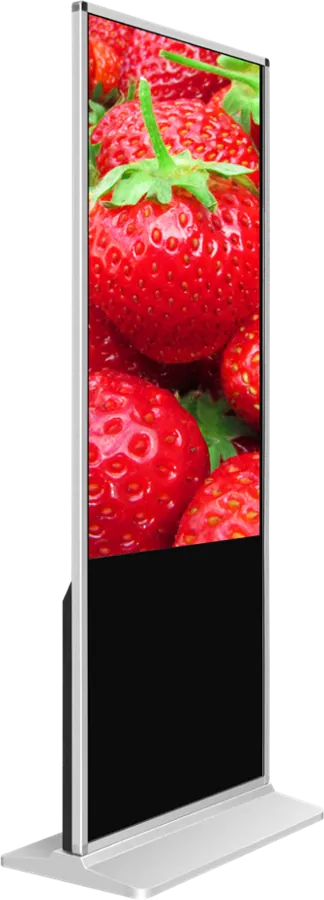
| Entrance, queue line, mall frontage | Indoor floor-standing signage | 43″ or 55″ portrait, 350 cd/m², Android RK3288 or Windows, touch optional | Shows the menu or the day's offer before people reach the counter |
| Door, pavement inside the property line, event stand | Digital poster (A-frame) | Ultra-slim poster on a folding stand, USB playlist or network publishing | Replaces the chalk board; folds away at closing |
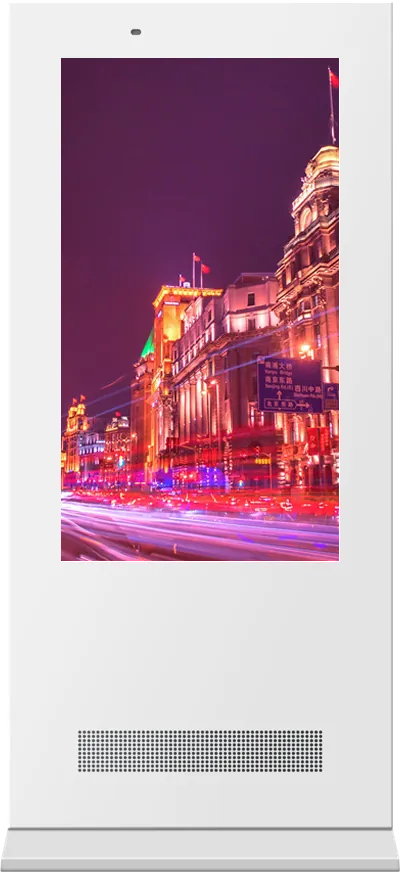
| Shop window, terrace, drive-through lane | 55″ outdoor floor-standing signage | 1,500 nits with auto brightness, IP55 galvanized cabinet, 6 mm tempered glass, −30 to +50 °C | Readable in daylight and sealed for weather |
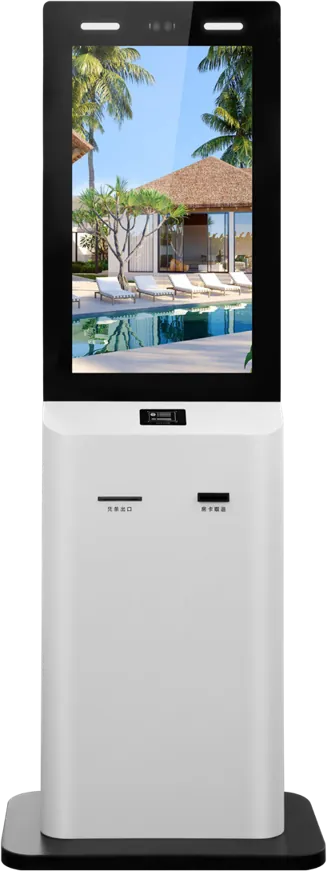
| Ordering point | Self-ordering kiosk | Android touch screen, QR payment, receipt printer, 180° scanner, plays ads when idle | Takes the order the menu board has sold |
A menu board that faces a window needs more brightness than one deep inside the store. Indoor panels at 350 cd/m² suit most counters; for a screen that faces the street through glass, or stands outdoors, choose the outdoor model. The outdoor signage guide explains brightness, cooling and sealing.
3. Screen size and how many screens
There is no standard formula; the figures below are general rules of thumb used in signage planning, not MJK specifications. Check them with a full-size paper mock-up on the wall before ordering.
| Question | Rule of thumb | Why |
|---|---|---|
| How many screens over the counter | One screen per menu category, or per 1–1.3 m of counter width; three is the most common QSR set | Customers scan left to right; one category per screen is quick to find |
| Text size | About 25 mm of character height per 3 m of viewing distance; prices at least as large as item names | A common signage readability rule |
| Screen size | 43″ for counters up to about 3 m away and small cafés; 55″ for typical QSR counters and queues up to about 6–8 m | Larger screens hold the larger text that longer distances need |
| Mounting height | Bottom edge just above head height of staff behind the counter; tilt the screens slightly down if they hang high | Readable from the queue without neck strain |
| Items per screen | A short list per screen, with the best sellers in the top third | A crowded screen slows the order more than a printed menu does |
Example: a burger counter 3.6 m wide, with the queue starting 2 m from the counter and ending at the door 7 m away. Three 55″ landscape screens cover burgers, sides and drinks. At 7 m the rule asks for roughly 60 mm characters; the 55″ wall-mount unit has an active area of 1211.4 × 682.2 mm, which leaves room for a short list in that size plus a photo of the main item.
4. Landscape or portrait
- Landscape suits a row of screens above a counter: it matches the wall, holds more lines of menu and lines up into one long menu wall.
- Portrait suits single screens: a promotion next to the counter, a narrow pillar, or the entrance. It shows one hero product large, the way a poster does.
- A common QSR layout mixes them: landscape menu screens over the counter, one portrait screen for the current promotion.
Our wall-mount model can be installed either way, and the floor-standing and A-frame models are portrait. Tell us the orientation in the order, because the boot screen, the software template and the bracket all follow it.
5. Software: dayparts, templates and who edits prices
The software decides how much work the menu board saves. Agree these points before shipping:
- Dayparting: the publishing software schedules playback, so breakfast, lunch, dinner and late-night menus switch at set times across all screens and stores.
- Templates: split-screen layouts with fixed zones for the menu list, a product video and a scrolling text line. Staff then change prices and photos without redesigning the screen.
- Publishing route: B/S (browser-based) or C/S (installed client) publishing; both are supported. A browser platform suits a chain whose head office updates every store.
- Offline playback: if the network is down, the screen keeps playing what it last downloaded, and content can be loaded from a USB stick or SD card.
- Links to POS or ordering systems: showing sold-out items or prices pulled from your POS needs an interface on the software side. Send the interface documents with the inquiry; this is confirmed per project.
Our digital signage CMS guide compares publishing platforms, and the RK3288 vs RK3399 article explains which board to choose when menus use 4K video.
6. Content rules that make customers order faster
These are general design rules for menu screens, not product specifications:
- Put the items you most want to sell in the top third of the screen and in the center screen of a set.
- Use motion in one zone only, such as a steaming coffee or a rotating burger; a whole wall of moving content is hard to read.
- Keep the same layout across screens so customers learn where prices sit.
- Use high contrast: light text on a dark background reads well and looks less like a television.
- Show combos and prices clearly; hidden prices send people back to the counter staff with questions.
- Plan for every language you serve; a template with a language zone is easier than separate screens.
7. Menu boards with self-ordering kiosks and order screens
Menu boards sell, kiosks take the order, and order-ready screens tell customers when to collect. Bought together, they share one brand look and one support contact:
- The self-ordering kiosk runs Android with Wi-Fi and Bluetooth, takes QR payments, prints receipts and plays advertising when idle. The self-ordering kiosk guide covers payment and layout.
- A dual-screen POS terminal at the staffed counter shows the order and ads to the customer on its second screen; see the POS guide.
- An order-ready or queue screen can be a wall-mount display running the order system's screen output; the queue guide explains calling displays.
We build the screens and kiosks in the same factory and can match frame color, logo and boot screen across them.
8. Running hours, power and heat
Menu boards run from opening to closing every day, often above a hot grill. Check these points:
- Panel grade: our indoor floor-standing model uses A-grade panels from LG, BOE or CSOT with a stated lifetime of more than 50,000 hours.
- Power: the 55″ wall-mount and floor-standing models are stated at 105 W; the ceiling-hung double-sided unit at ≤ 80 W. Multiply by the number of screens and opening hours to plan the electricity.
- On and off times: set the screens to switch off after closing. It saves power and panel life.
- Heat and grease: keep screens out of the direct exhaust above fryers and grills, leave ventilation space behind wall units, and clean the front glass on a schedule.
- Weight and fixing: the 55″ wall-mount unit weighs 50.5 kg net, so the wall and fixings must be rated for it; ceiling-hung units need a ceiling anchor, not a suspended-ceiling tile.
9. Specification checklist for your RFQ
| Item | What to specify |
|---|---|
| Stores | Number of stores, counter width, viewing distance, photos of the wall or ceiling |
| Screens per store | Format (wall, ceiling-hung, floor-standing, A-frame, outdoor), size, quantity, orientation |
| Brightness | Indoor, facing a window, or outdoor / drive-through |
| Player | Built-in Android, Windows, or a separate player box for existing screens |
| Software | Our publishing platform or yours; dayparts; who edits; POS or ordering-system interface |
| Network | Wi-Fi, Ethernet or 4G per screen |
| Content | Templates to preload, languages, whether we set up the first menu |
| Related devices | Self-ordering kiosks, POS terminals, order-ready screens |
| Branding | Frame color, logo, boot screen |
| Power and certification | Voltage, plug type and the marks your market requires |
Send it through the contact page. The certification guide lists the marks by market, and the sourcing guide covers samples, inspection and shipping.
10. Common mistakes
- Choosing a consumer TV: it is not built for long daily hours, and its warranty may not cover commercial use.
- Ordering screens before deciding who will update the menu and with which software.
- Putting the full printed menu on a screen, in text too small to read from the queue.
- An indoor screen in a sunny window, so the menu washes out at lunchtime.
- Mixing landscape and portrait without a plan, so templates have to be made twice.
- Hanging screens directly over the grill exhaust.
- Buying menu boards and kiosks from different suppliers that show two different brand styles at one counter.
For the full digital signage range beyond menus, see the floor-standing signage guide and the digital signage category.
Frequently asked questions
What is the best screen size for a digital menu board?
For most QSR counters, 55″ screens in landscape are the usual choice; 43″ suits small cafés and counters read from up to about 3 m. Size from the farthest point where customers read the menu: as a rule of thumb, about 25 mm of character height per 3 m.
Can I use a normal TV as a menu board?
It can show a picture, but consumer TVs are not built for long daily running, often lack scheduling and remote publishing, and their warranty may exclude commercial use. Commercial signage has built-in players, publishing software and panels rated for all-day use.
Can the menu change automatically between breakfast, lunch and dinner?
Yes. The publishing software schedules playback by time of day, so each menu switches at the times you set on every screen and in every store.
Do you supply menu boards and self-ordering kiosks together?
Yes. We build both in the same factory and can match frame color, logo and boot screen; order-ready screens and dual-screen POS terminals can be added to the same order.